Consistent 8-Directional Character Sprite Sheets in the 2D Style You Pick
Describe a character, pick a 2D art style and get animated sprite sheets in up to 8 directions, all rendered from one 3D model so every view matches.
What are directional sprites?

Directional sprites are a set of sprite sheets that show one game character from several facing directions, usually 4 or 8 (8-direction, or 8-directional, sprites), so it can walk, run and attack whichever way it moves in a top-down, isometric or side-on game. Ludo's Directional Sprites makes the whole set from a text description or your own character image: it generates the character (or redraws your image as a 3D render), builds a rigged 3D model of it, and renders every view from that one model in the 2D style you pick, from retro pixel art to watercolour. Because every view comes from the same model, all the directions match in outfit, proportions, scale and floor, and so does every animation you make for that character. You choose up to 8 views (Front, Front-Left, Left, Back-Left, Back, Back-Right, Right and Front-Right), one of 5 camera heights from Horizon to Top, one of 15 styles and a move from the preset library, and each direction comes back as its own transparent PNG sprite sheet, ready to export with TexturePacker-format JSON for Phaser, PixiJS and Cocos2d.
Last updated November 2026
One model, every direction, style and move

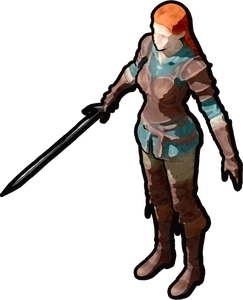

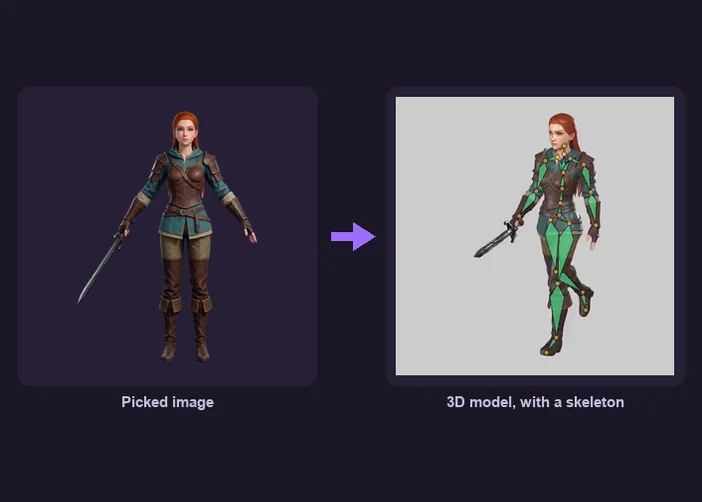
Every sheet Directional Sprites renders comes from one rigged 3D model of your character, built once in the first step. Each lane below starts from that same model, the one on the left, and ends in a real result from it, so the views, the styles and the moves all match: the same outfit, the same proportions, the same scale and the same floor.
Any direction
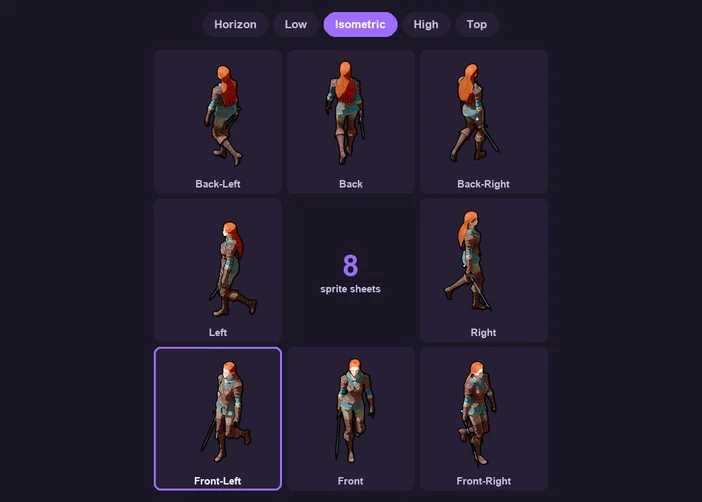
Pick up to 8 views on the compass, or all of them with All 8, and a camera height from Horizon to Top. Each view renders as its own sheet, on the same scale and floor as the others.

The rigged 3D model, built once
The walk, Front-Left view, Isometric height
Any 2D style


Switch between 15 styles, from Retro pixel art to Watercolour and Plain 3D, and tune each one's settings. The model underneath stays the same, so only the look changes.
The same model
The same walk in Pixel art
Any preset move
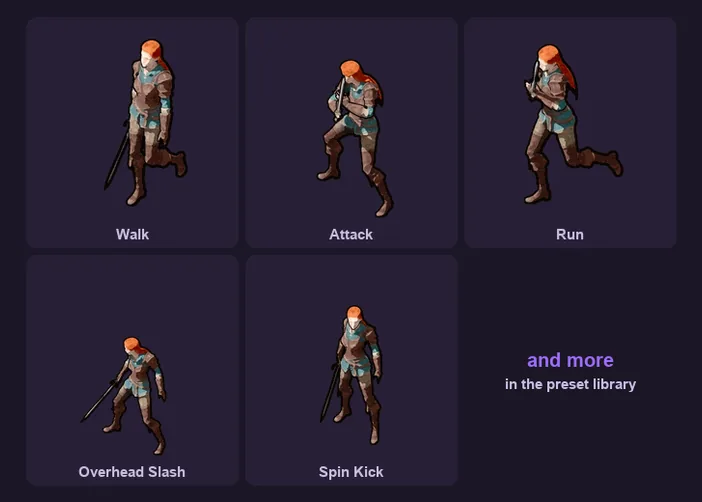
Swap the walk for another move from the Sprite Generator's preset library. Every preset plays on the same skeleton, so the walk, the run and the attack match.

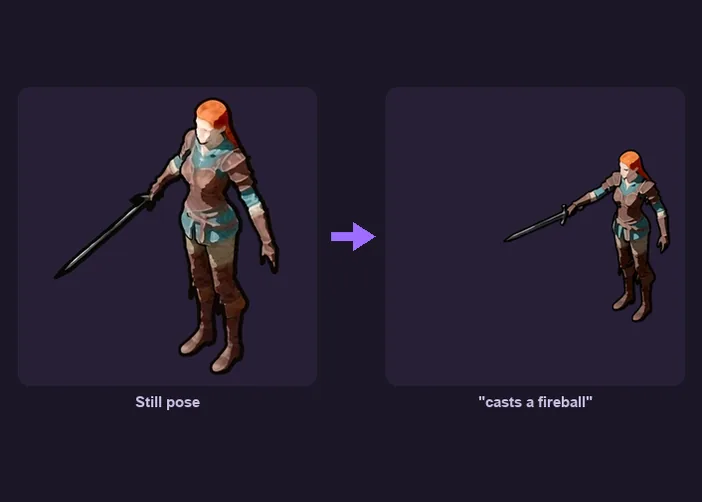
For a spell, an effect or a move the presets do not cover, render a Still pose of the character and use it as the first frame of a Sprite Generator animation you describe in a prompt.
A Still pose, rendered from the model
"casts a fireball", animated in the Sprite Generator
How It Works
Directional Sprites is in beta in the Ludo web app. Three steps take you from one sentence to a matching sprite sheet for every direction:
1.
Describe the character
Type a description and generate images, then pick one, or add your own character image and Ludo redraws it as a 3D render. Choose a Prop or Hero 3D model, a skeleton and a camera height, and click Generate and Render: in a minute or two the character comes back as a rigged 3D model, already walking. A model you made in the 3D Generator comes straight in with Make Sprites.
2.
Pick a 2D style
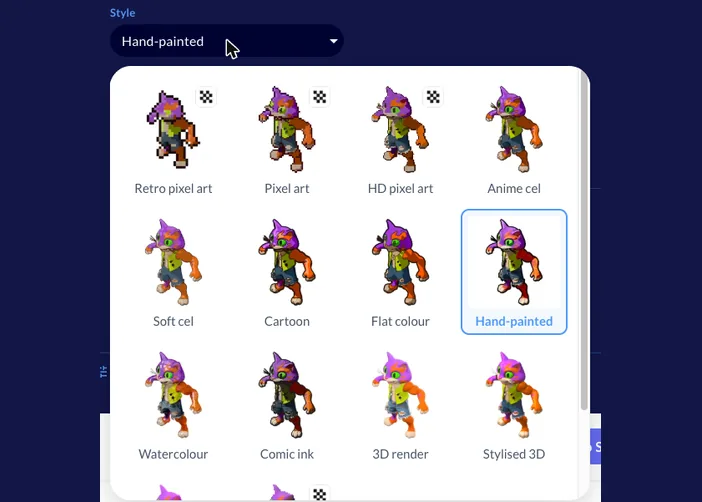
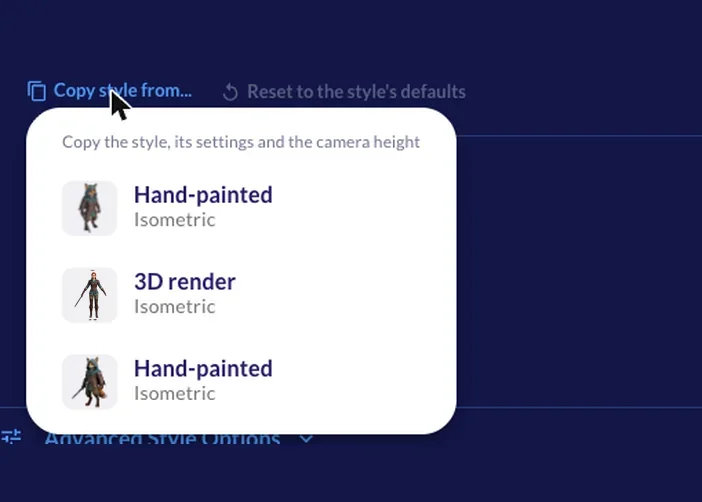
Choose one of 15 styles, from Retro pixel art to Watercolour and Plain 3D, and tune its settings, like Ink lines and Brush texture for Hand-painted. Copy style from... gives the character another one's style, settings and camera height, and the free Quick preview walks your character in the style.
3.
Render every direction
Pick a move from the preset library, the views on the compass (4 sides or All 8) and the height, check every view in the free Quick preview, then render. Each direction comes back as its own sprite sheet, all on the same scale and floor, ready to export.
From One Sentence to a Rigged 3D Model in a Minute or Two
Describe your character, click Generate Images and pick the image you like. Choose Prop or Hero for the 3D model and a skeleton, and Generate and Render brings it back rigged and already walking. Have a character already? Add its image and Ludo redraws it as a 3D render to build the model from. Models from the 3D Generator come in with Make Sprites.
Every Direction, Each on Its Own Sprite Sheet
Pick the views on a compass: Front, Front-Left, Left, Back-Left, Back, Back-Right, Right and Front-Right, one at a time or with the 4 sides and All 8 shortcuts. Each direction renders as its own sprite sheet, so your engine switches sheets as the character turns, and every sheet shares the same scale and the same floor, so nothing jumps or shrinks when it does. The free Quick preview shows every picked view before you spend a credit.
From Side-On to Straight Down
Five camera heights cover the cameras 2D games use, from side-on to straight down: Horizon, Low, Isometric, High and Top. Set the height when you make the model, and change it for any render under Height in the Sprites step, so the same character can serve a side-on game, an isometric one and a top-down one.
One Model, the 2D Look You Pick
The model stays the same; only the look on top of it changes. Choose from 15 styles: Retro pixel art, Pixel art, HD pixel art, Anime cel, Soft cel, Cartoon, Flat colour, Hand-painted, Watercolour, Comic ink, 3D render, Stylised 3D, Animated film, Retro 3D and Plain 3D. Each style has settings of its own, like Ink lines and Brush texture for Hand-painted, with more under Advanced Style Options, and the free Quick preview walks your character in the style as you change it.
Keep a Whole Cast in One Look
Copy style from... gives a character another character's style, its settings and its camera height in one step, so the hero, the party and the enemies they meet all look like they belong to the same game. With one model per character and one shared style, every sheet of every character matches.
A Whole Moveset from the Preset Library
Every character starts on Walk Forward (Standard). Change opens the same preset library as the Sprite Generator, with hundreds of presets, from attacks and runs to overhead slashes and spin kicks. Presets are made for humanoid characters. Horizontal travel is off by default, which keeps the character on the spot the way a game engine expects, while Vertical travel stays on to keep jumps and bobbing. Every move is rendered from the same model, so the walk, the run and the attack all match.
Stills for the Moves the Presets Don't Cover
Switch Animation to Still pose to render the character as a still image, in your style and in the views you pick. A still works as the first frame in the Sprite Generator, where you describe a custom move like a spell or an effect. Characters on the Other skeleton (for creatures and objects) or on No rigging render still poses only, so this is also the route to animating them.
Export Sheets, Frames or TexturePacker JSON
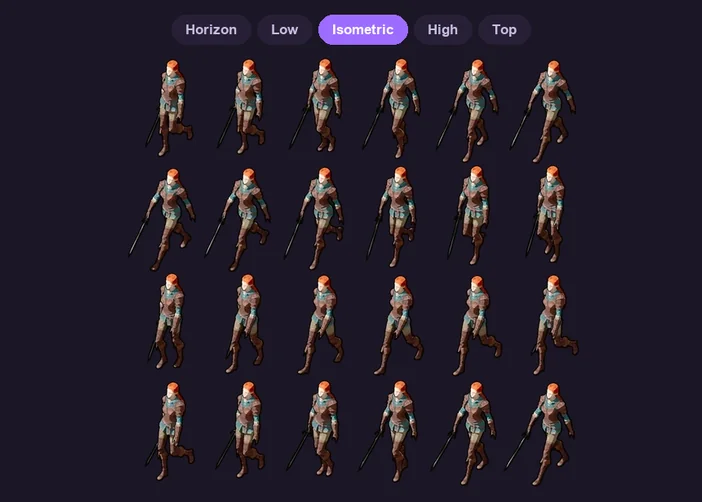
Pick the sprite size, frame count and loop, and every direction comes out as a transparent PNG sprite sheet. Export bundles them as spritesheets, spritesheets with TexturePacker JSON (Phaser, PixiJS, Cocos2d) or individual frames.
Rendered, Not Animated from Scratch
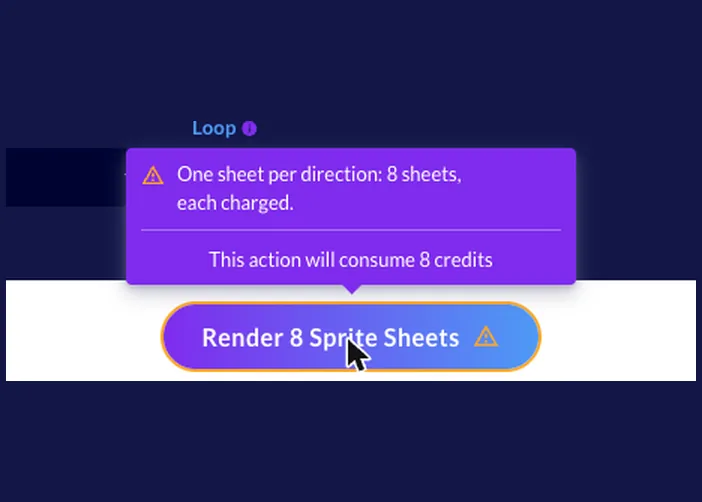
Because each sheet is rendered from the model rather than animated from scratch, it is fast and cheap. A sheet renders in about 30 seconds, about three times faster than a Hydra animation in the Sprite Generator. At the promotional price a sheet costs 1 credit, so all 8 directions cost 8 credits, about a tenth of what one Hydra animation costs. Previews are free in every step, and the 3D model is a one-time step per character: 5 credits with Prop, 16 with Hero, skeleton included.
FAQ
Up to 8 directions: Front, Front-Left, Left, Back-Left, Back, Back-Right, Right and Front-Right, picked one at a time on a compass or with the 4 sides and All 8 shortcuts. Each direction is its own sprite sheet. There are 5 camera heights, from side-on to straight down: Horizon, Low, Isometric, High and Top, so the same character works for side-on, isometric and top-down games.
Yes, and that is the point of the tool. Every sheet is rendered from one rigged 3D model of your character, so all 8 directions show the same outfit, the same proportions and the same scale, standing on the same floor. It holds across animations too: the walk, the run and the attack all come from that one model, so a whole moveset fits together. For a whole cast, Copy style from... gives a character another one's style, settings and camera height.
You need no 3D model and no 3D skills. Describe the character and Ludo generates it, or add your own character image and Ludo redraws it as a 3D render; either way it builds a rigged 3D model of it in a minute or two, and renders that model into 2D sprite sheets in the style you pick: the 3D to 2D sprite step happens behind the scenes. If you already made a model in Ludo's 3D Generator, its Make Sprites action brings it straight in.
15 styles: Retro pixel art, Pixel art, HD pixel art, Anime cel, Soft cel, Cartoon, Flat colour, Hand-painted, Watercolour, Comic ink, 3D render, Stylised 3D, Animated film, Retro 3D and Plain 3D. Each has settings of its own, such as Ink lines and Brush texture for Hand-painted, plus Advanced Style Options. The style is drawn on top of the model, so changing it never changes the character underneath.
Every character starts on Walk Forward (Standard). Change opens the same preset library as the Sprite Generator, from attacks and runs to overhead slashes and spin kicks. Presets are made for humanoid characters and play on any skeleton, though retargeting does not succeed on every model: pick Humanoid for a two-armed, two-legged character, or With fingers for animations that move the hands. You can browse the preset library with a video preview of each motion.
Yes, by default. Horizontal travel starts Off, which keeps the character on the spot the way a game engine expects, so your movement code moves the character instead of the animation. Vertical travel starts On, which keeps jumps and bobbing in the frames. Switch either one if your game needs the other behaviour.
Yes. No rigging renders still poses only, in any of the 15 styles, from any of the 8 directions and camera heights. The Other skeleton (for creatures and objects) can take the walk and the presets too, but they are humanoid motions and retargeting does not succeed on every model, so a creature may need a still pose instead. To animate a still, use it as the first frame in the Sprite Generator and describe the motion.
Switch Animation to Still pose and render a still of your character in the style and views you want, for 0.5 credits each. Stills are images, so you can use one as the first frame in the Sprite Generator and describe the move, such as "casts a fireball". The custom move then starts from the exact character, style and view your other sheets use.
Yes. Previews are free in every step. In the Style step the Quick preview walks your character in the style as you change it, and in the Sprites step it shows every view you picked, so you can check the style, the move and the camera before you click Render.
The 3D model: 5 credits with Prop and 16 credits with Hero, the skeleton included, once per character. With No rigging the skeleton credit is not charged (4 with Prop, 15 with Hero).
Sprite sheets: 1 credit each at the promotional price, so a full set of 8 directions costs 8 credits.
Stills: 0.5 credits each.
Previews: free in every step.
At the promotional price, a Directional Sprites sheet costs about a tenth of one animation on Hydra, the Sprite Generator's default model, which costs 3 credits per second for 3 to 5 seconds, or 9 to 15 credits. A full 8-direction set made in the Sprite Generator (one animation plus seven New Direction runs) would come to 72 to 120 credits. Here it is 8 credits, plus the one-time model.
The 3D model is a one-time step of a minute or two per character. After that, a sprite sheet renders in about 30 seconds, against about a minute and a half for a Hydra animation in the Sprite Generator, so it comes back about three times faster. That speed comes from rendering each sheet from the model rather than animating it from scratch.
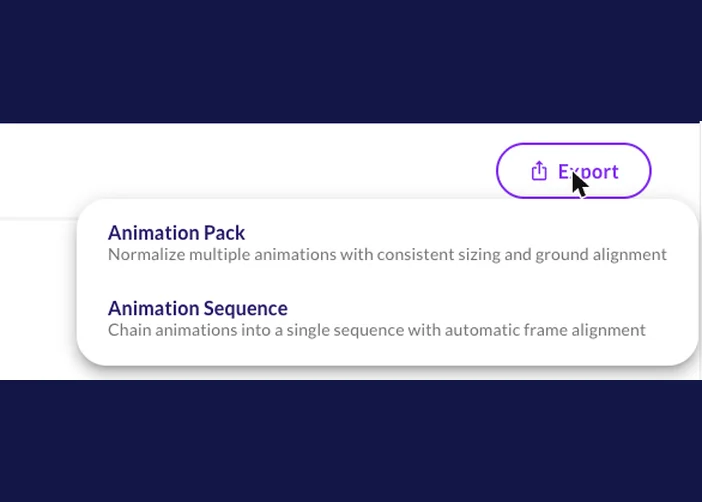
Every sheet is a transparent PNG. Export has two options. Animation Pack brings several animations to the same size and ground line and downloads them as Spritesheets (ZIP), Spritesheets + JSON with the frame data in TexturePacker format (read by Phaser, PixiJS and Cocos2d), or Individual Frames. Animation Sequence chains animations into one sequence with the frames aligned. For Godot or Unity, the free, offline Ludo toolbox can export the sheets with the engine's import files. Every sheet also appears in the Sprite Generator, so you can keep working on it there.
Sprite Size is 32, 64, 96, 128, 192, 256 or 384 px, or Max (the default). Max Frames is 4, 9, 16, 25, 36, 49 or 64, with 36 as the default. Loop offers Auto (recommended), Seamless loop and Play once. Set them once and every direction renders with the same settings, so the sheets line up in your engine.
The Sprite Generator turns a sprite you already have: Change Direction turns a character to a new camera angle and New Direction re-renders a finished animation facing the new way, one direction per run, from any 2D image (see the Sprite Rotation Generator). Directional Sprites starts from a description or your own character image, builds a 3D model of the character, and renders every direction you pick from it, in one of 15 styles. Use it when you are making a new character and want all its directions to match.
Yes. Directional Sprites is in beta in the Ludo web app and is also on the Ludo CLI, the MCP server and the API. The steps are the same: make the character image (from a prompt, or your own image redrawn as a 3D render), build a rigged model, pick one of the 15 styles, check it with a free preview, then render a sheet or a still for each direction. Off the web app the animation can also be a prompted one made on that model, not only a preset. Sheets you make in the web app appear in the Sprite Generator like any other animation.
Turn one character into a matching set of sprite sheets for every direction your game needs. Sign up now and render your first character from every side.