
AI Tileset Generator: Autotile Tilesets for Top-Down and Isometric Games
Describe two grounds, such as sand and water, and get a 16-tile tileset that covers every way they meet, top-down or isometric, with a normal map, a test map in your browser and files for your engine: an atlas PNG and a JSON of every tile for any engine, and ready-made tilesets for Godot 4 and Tiled.
Ludo's Tileset Generator, shown taking one shore through each of its steps:
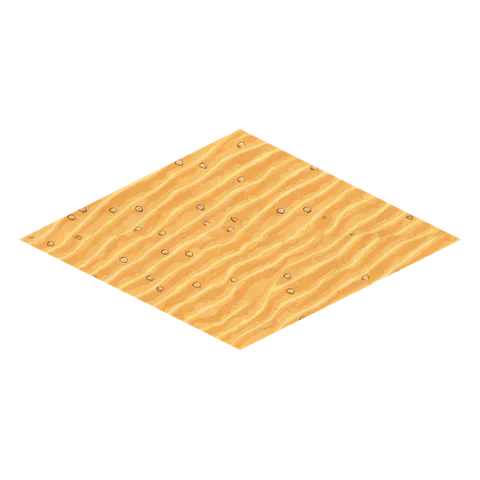
- Base tiles: Make and keep seamless tiles and lines. On the Isometric 2:1 grid, in the Inked Painterly style, the ground "warm golden beach sand with tiny seashells and soft ripples" returns a sand tile that repeats with no seam; a second description made the water tile the same way.
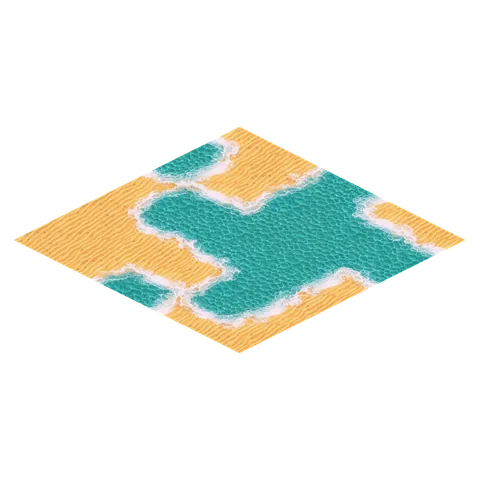
- Tileset: Blend two of them into a set. The sand as Terrain A and the water as Terrain B, the transition "white sea foam lapping the sand", the Jagged outline and Normal map on, return a terrain set of 16 tiles: every way sand and water meet at a tile's corners.
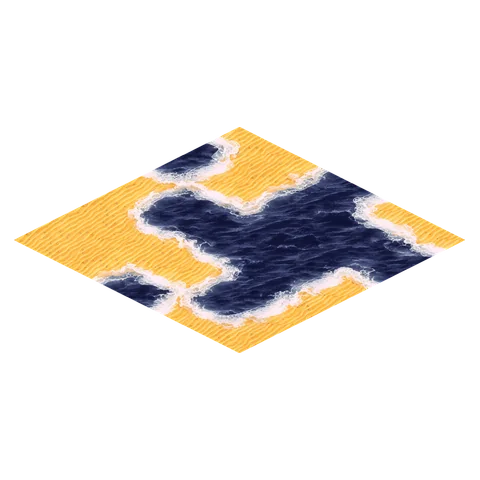
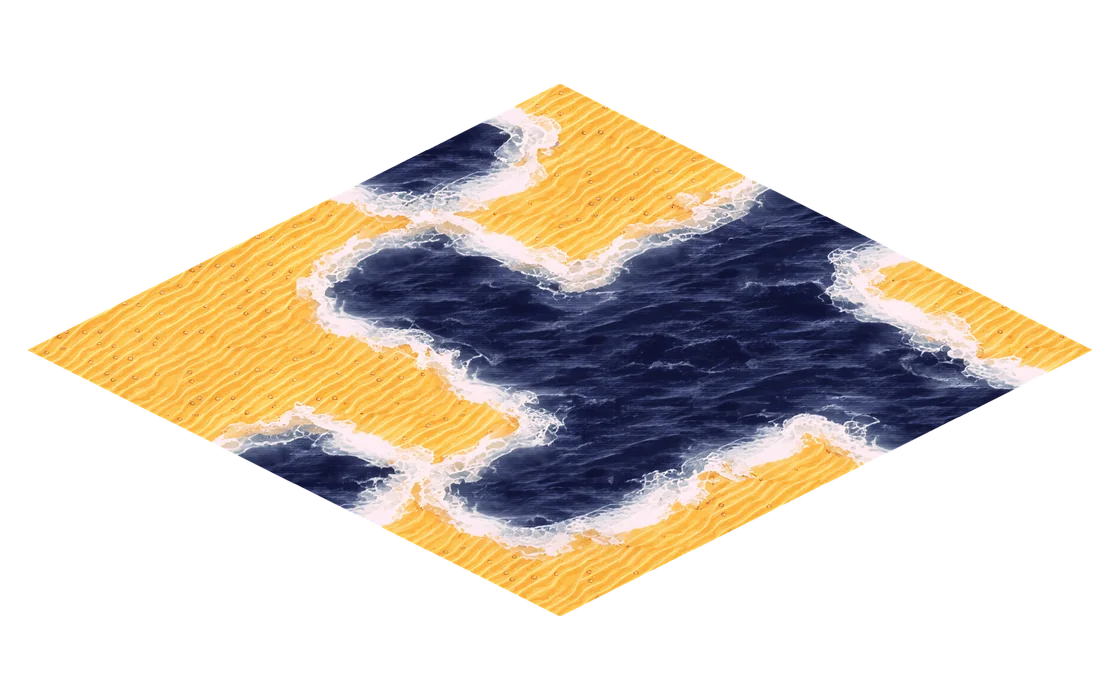
- Test & export: Paint a map with it, then export. The set paints a test map in the browser; the edit "a stormy sea: dark deep blue rough water with big whitecap waves crashing on the shore" returns a new set that fits together the same way, the first one kept; Export gives the atlas PNG, the normal map PNG, a Godot 4 TileSet (.tres) and a JSON of every tile.

What is an AI tileset generator?
An AI tileset generator makes the tiles a game map is painted with from a text description. Ludo's Tileset Generator works in three steps. It makes base tiles from a description, such as grass, sand, cobblestones or water, each one repeating with no seam; it blends two of them into a set of 16 tiles that covers every way the two terrains can meet at a tile's corners, or, for a line set, every way a road, a river, a fence or a wall leaves a tile; and it exports the set as an atlas PNG with a Godot 4 TileSet (.tres), a JSON of every tile and, for top-down sets, a Tiled tileset (.tsx). It works on Top-down, Isometric 2:1 and True isometric grids, in the art style you pick or the look of a reference image. In Godot, fill the map with one terrain, then paint the other with the terrain brush, and each cell takes the tile it needs.
Last updated November 2026
How it works
The Tileset Generator is in the Ludo web app. Three steps take you from a described ground to a tileset your engine can paint with:
- Base tilesChoose the map grid (Top-down, Isometric 2:1 or True isometric), describe the ground, pick an Art Style or the Reference Image tile, and click Generate Tiles. Each tile repeats with no seam; make one per terrain. For a line set, make the line here: Line ↔, Line ↕ or Scatter.
- TilesetPick Terrain or Lines, put two of your tiles in the slots, describe The transition, choose an Outline and, if you want one, switch on Normal map. Generate Tileset builds the 16 tiles.
- Test & exportPaint a test map with the set, light it if it has a normal map, and change the whole set with one sentence if you like. Then Export the atlas PNG, the normal map, a Godot 4 TileSet (.tres), a JSON of every tile and, for top-down sets, a Tiled tileset (.tsx).
Two tiles in, a whole tileset out
Every set starts from base tiles you describe in step 1, each one repeating with no seam. Step 2 blends two of them into 16 tiles that fit each other at their corners or sides, with the boundary, the outline and the normal map you ask for. Every picture below is real output of the tool.
- The groundwarm golden beach sand with tiny seashells and soft ripples
A description 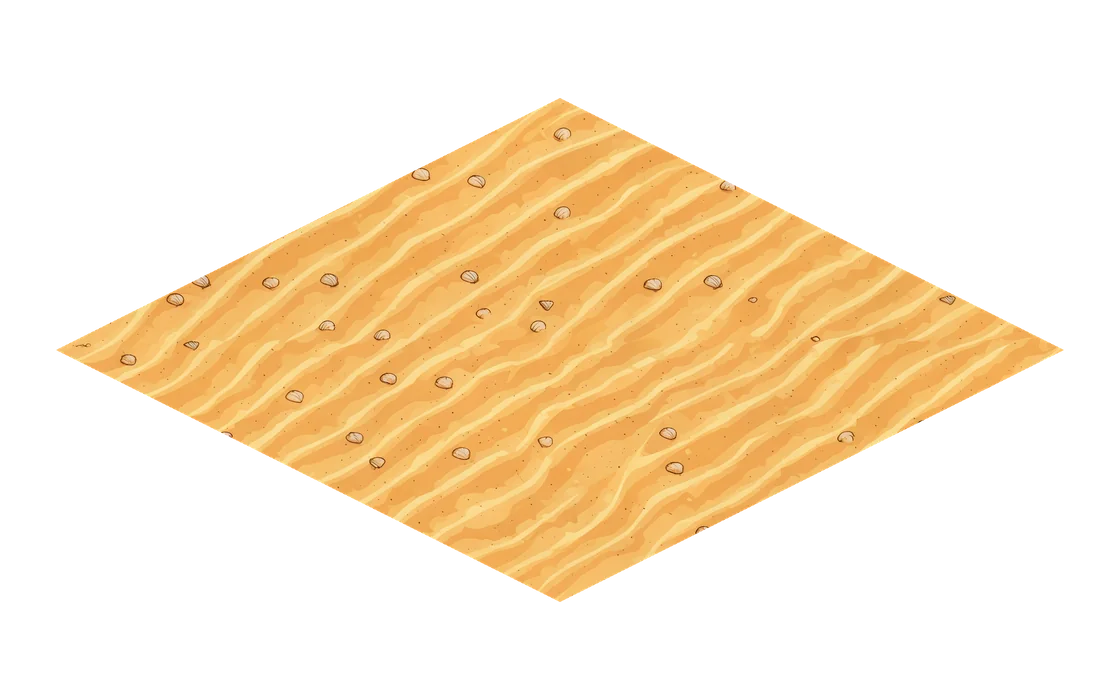
A seamless sand tile, Inked Painterly Seamless base tiles
Describe the ground under The ground, pick an Art Style, or the Reference Image tile in the Art Style picker to match a picture's look, and click Generate Tiles. Each tile repeats with itself with no seam, and each press queues one more, so you make one per terrain. Step 1 also makes the line a line set is built from: Line ↔, Line ↕ or Scatter.
- Ground
- Line ↔
- Line ↕
- Scatter
Top-down or isometric
Choose the map grid before you make tiles: Top-down squares, Isometric 2:1 or True isometric. New tiles are made for the grid you choose, and a tileset blends tiles of the same grid, so the set fits the map your game draws.
- Top-down
- Isometric 2:1
- True isometric
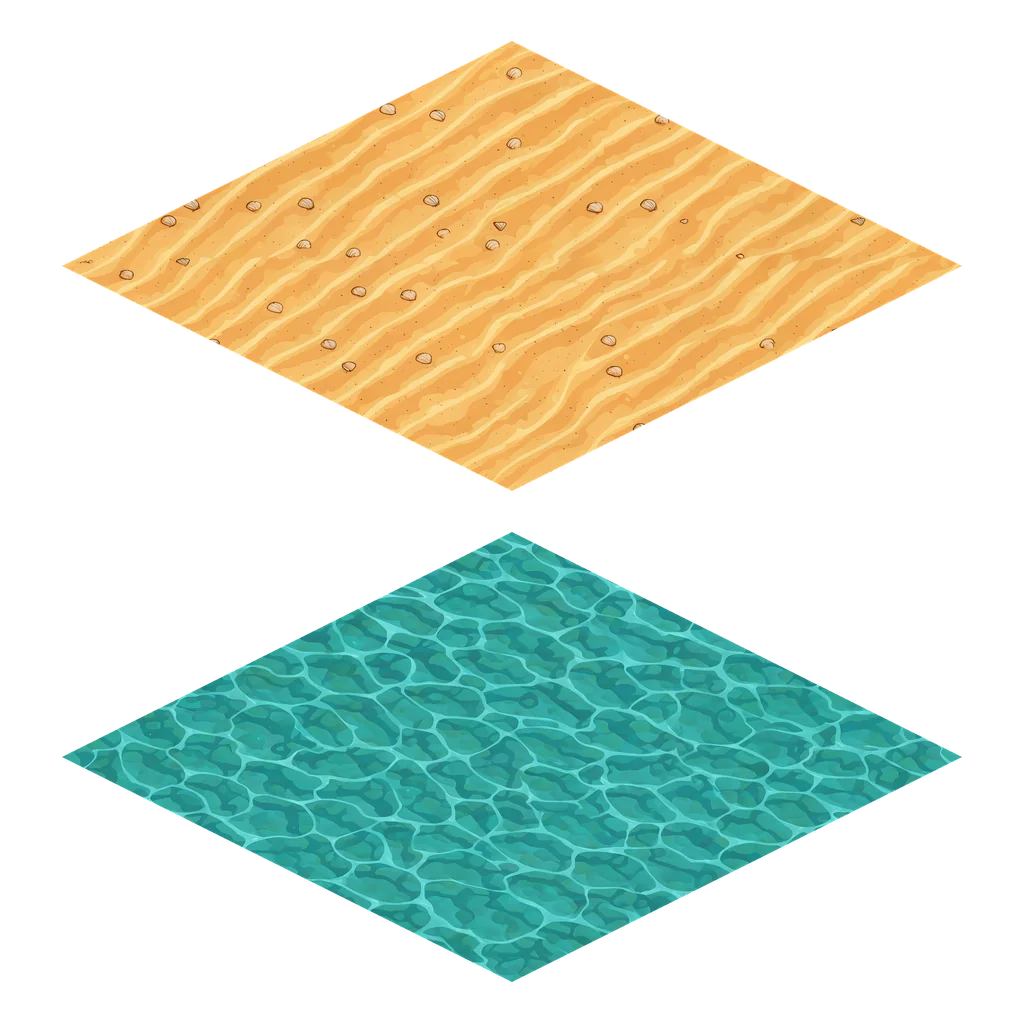
Two base tiles The transitionwhite sea foam lapping the sand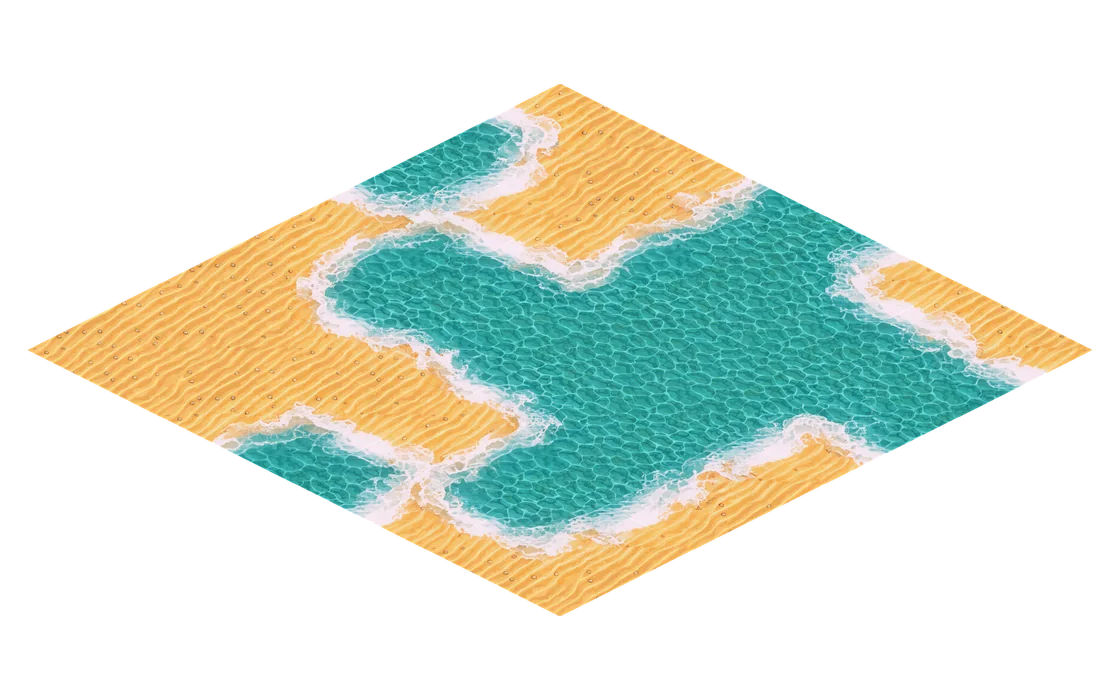
The 16 tiles, fitted together Every way two terrains meet
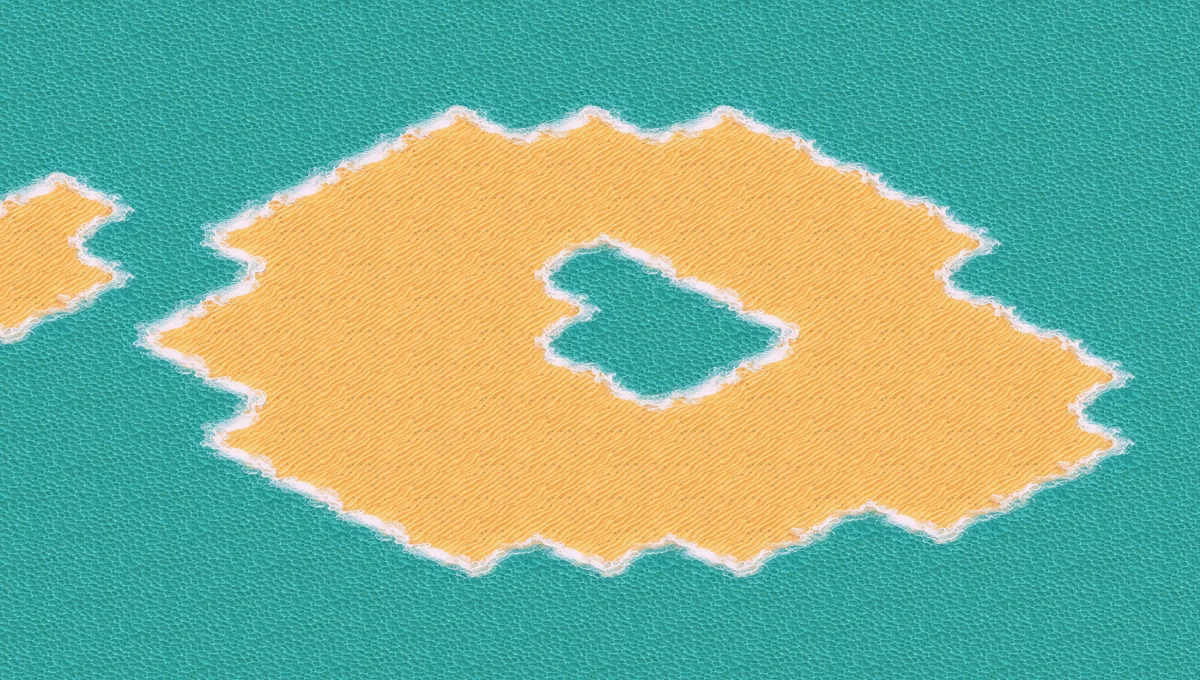
Put two tiles in Terrain A and Terrain B, describe The transition, and Generate Tileset returns 16 tiles: one for every way the two terrains can meet at a tile's corners, edges, corners and inner corners included. Leave Terrain B empty and the tiles are cut out there instead, for floors over a void, or islands.
- 16 tiles
- Terrain A and B
- Cut out without B
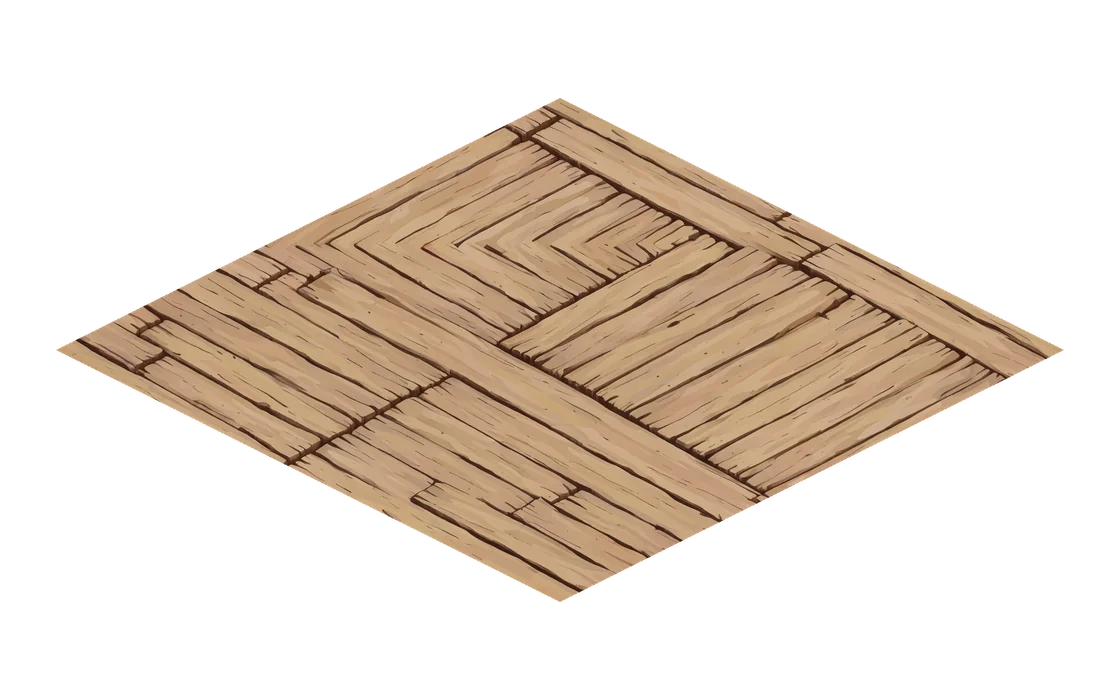
B · Line made of: boardwalk planks The transitiona boardwalk with low rope railings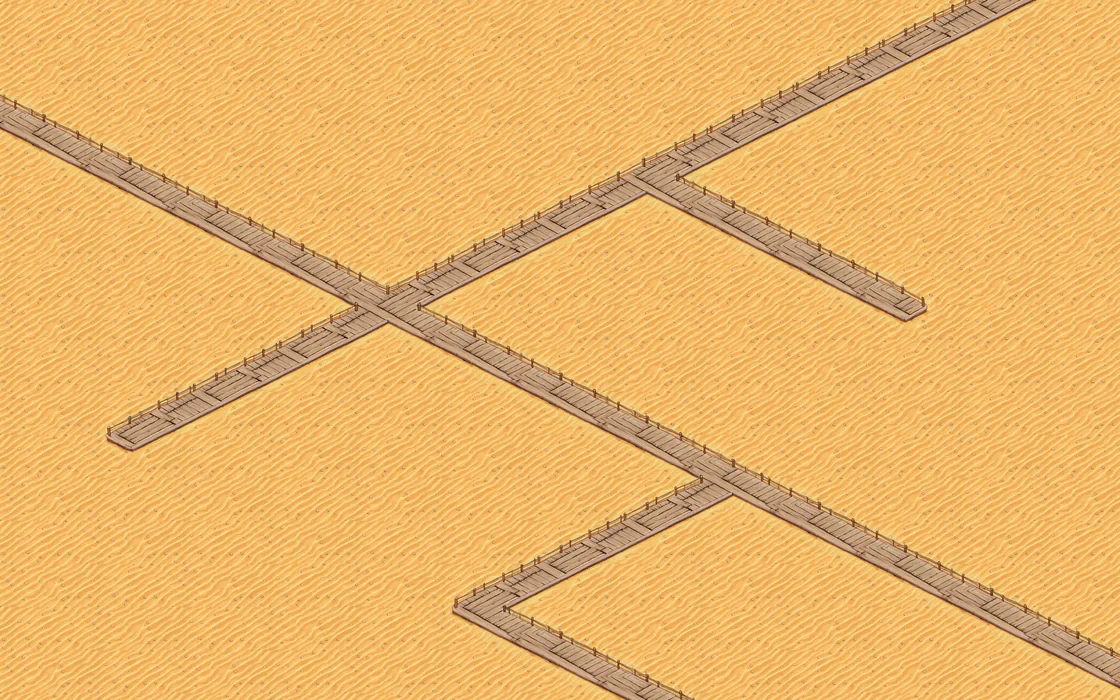
A map painted with the line set Roads, rivers, fences and walls
A line set lays a line over the ground in every dead end, straight, turn, T and crossing. It is built from a line made in step 1, in B · Line made of, or from a ground tile of the line's material, like the boardwalk planks here. A · Underneath is optional: leave it empty and the line comes on its own, on a transparent overlay layer.
- Dead end
- Straight
- Turn
- T
- Crossing
Five outlines
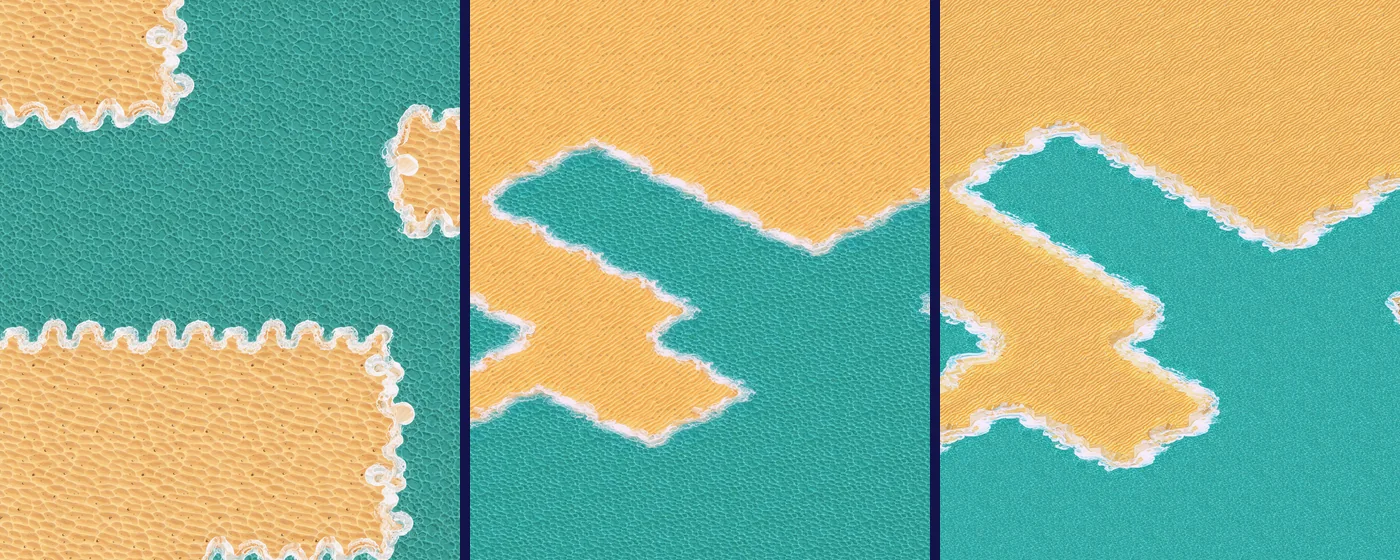
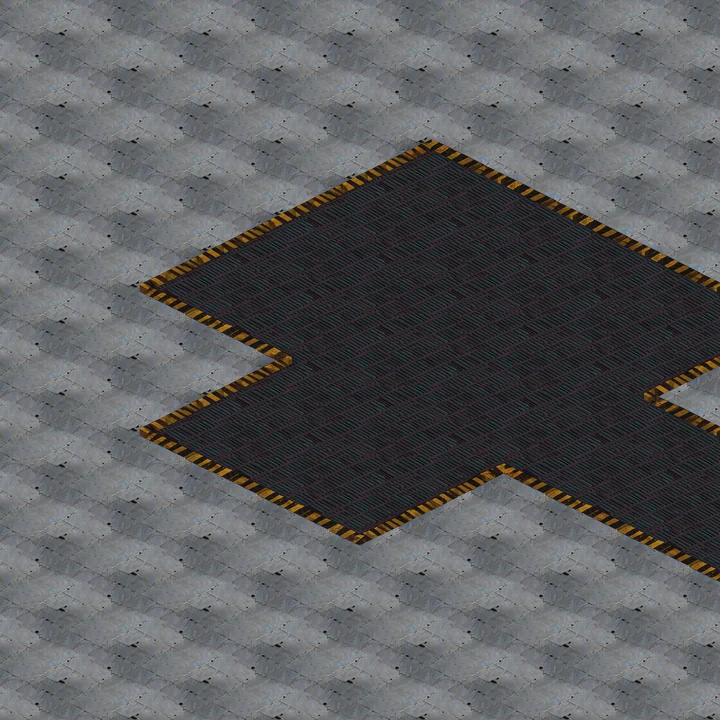
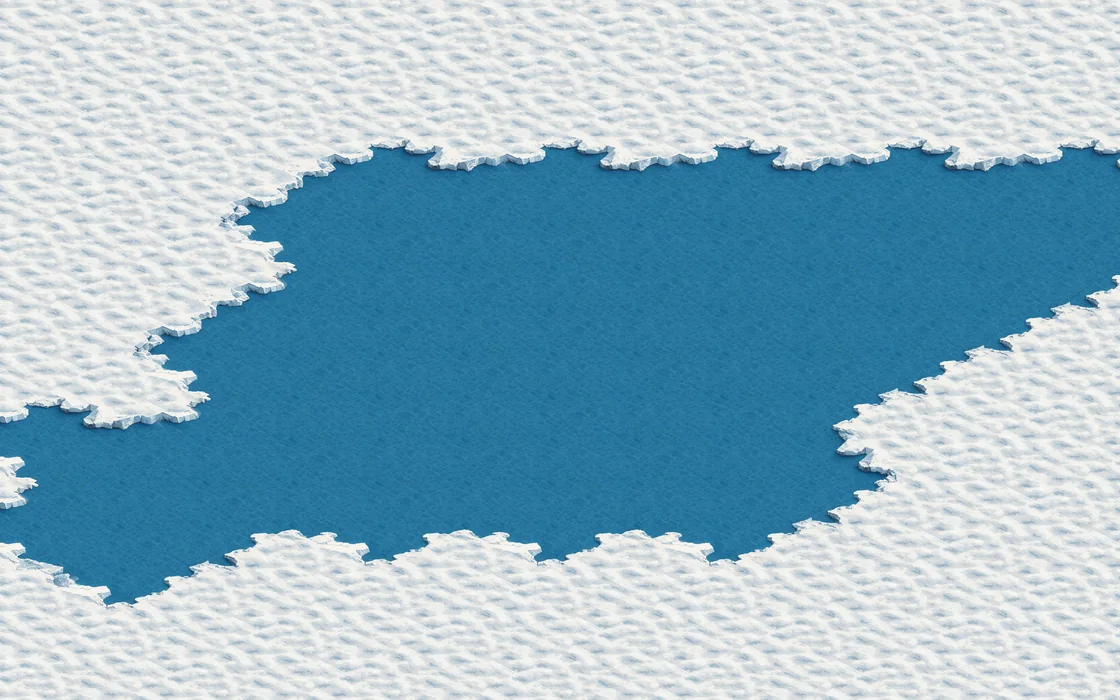
The Outline sets the character of the boundary: Natural (an organic outline), Smooth (plain curves), Jagged (fine wiggles), Rounded (square corners, rounded) or Sharp (straight runs and square corners). Here are three of them, each on a set of its own.
- Natural
- Smooth
- Jagged
- Rounded
- Sharp
- Smoothwhite sea foam lapping the sand
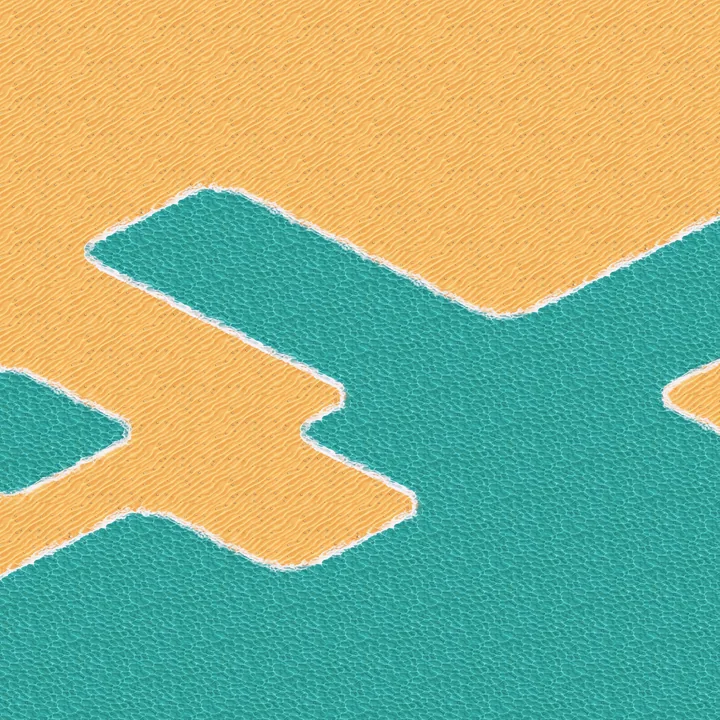
- Jaggeda jagged shelf of broken ice
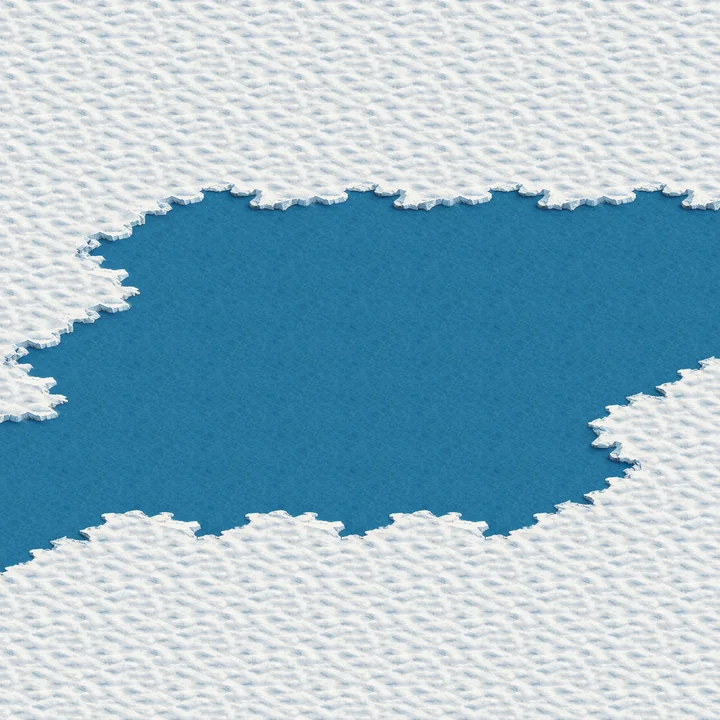
- Sharpa yellow and black hazard stripe
Try it before you export it
A test map in the browser
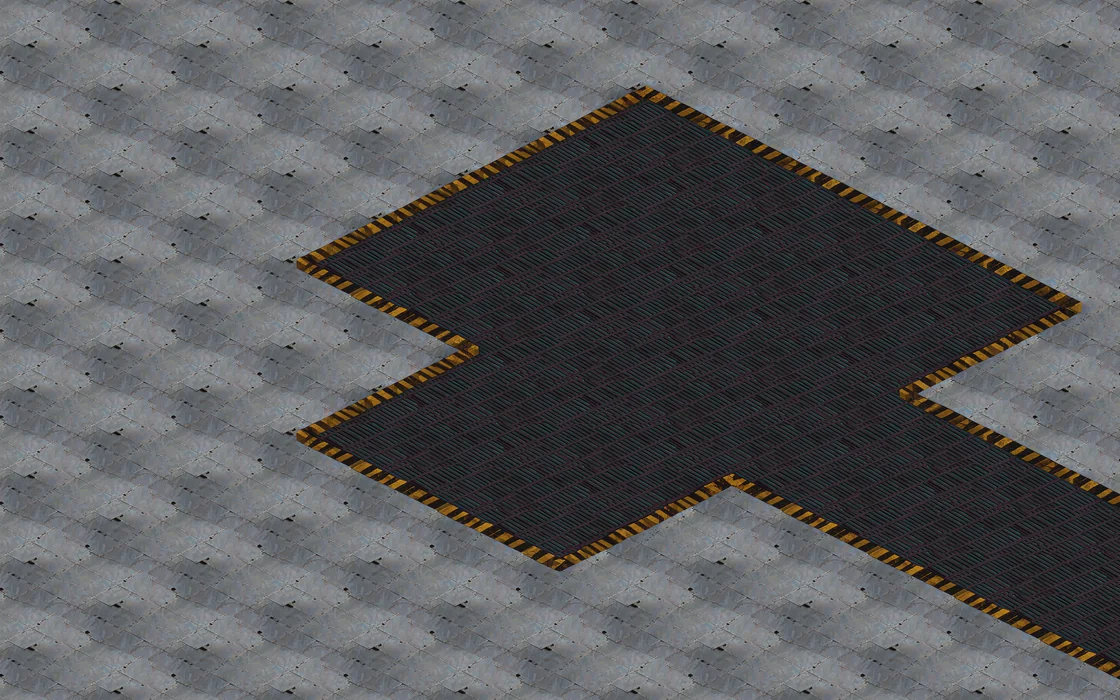
Step 3 opens the set on a test map. Paint with Terrain A or Terrain B, or draw a line, and every cell takes the tile it needs, as it will in your engine. Roll the dice for a new layout, show the grid, or switch to the Tileset view to see all 16 tiles.
- Test map
- Tileset view
- Grid
The set, painted 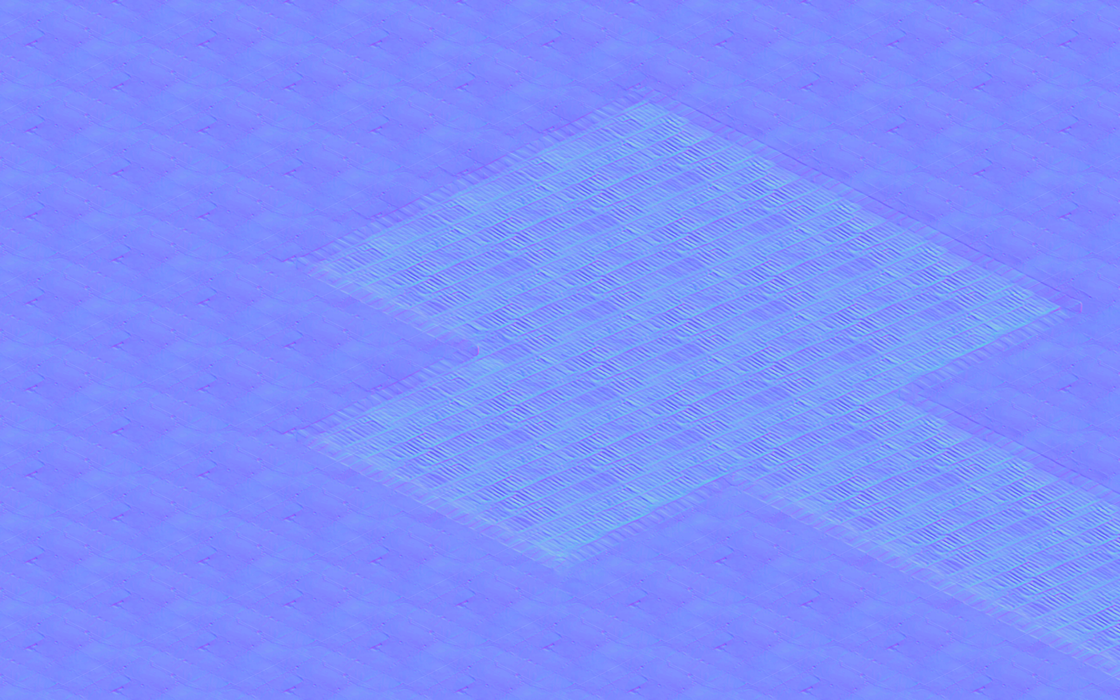
The same map, from its normal map A normal map of the whole set
Switch on Normal map in step 2 and the set comes back with a matching normal map of all 16 tiles, for 2D lighting. In step 3, Test the lighting makes your pointer the light, and Export gives it as Normal map PNG.
- Normal map PNG
- Lit test map
The frozen lake set Edit this tilesetin spring thaw, patches of green grass showing through the melting snow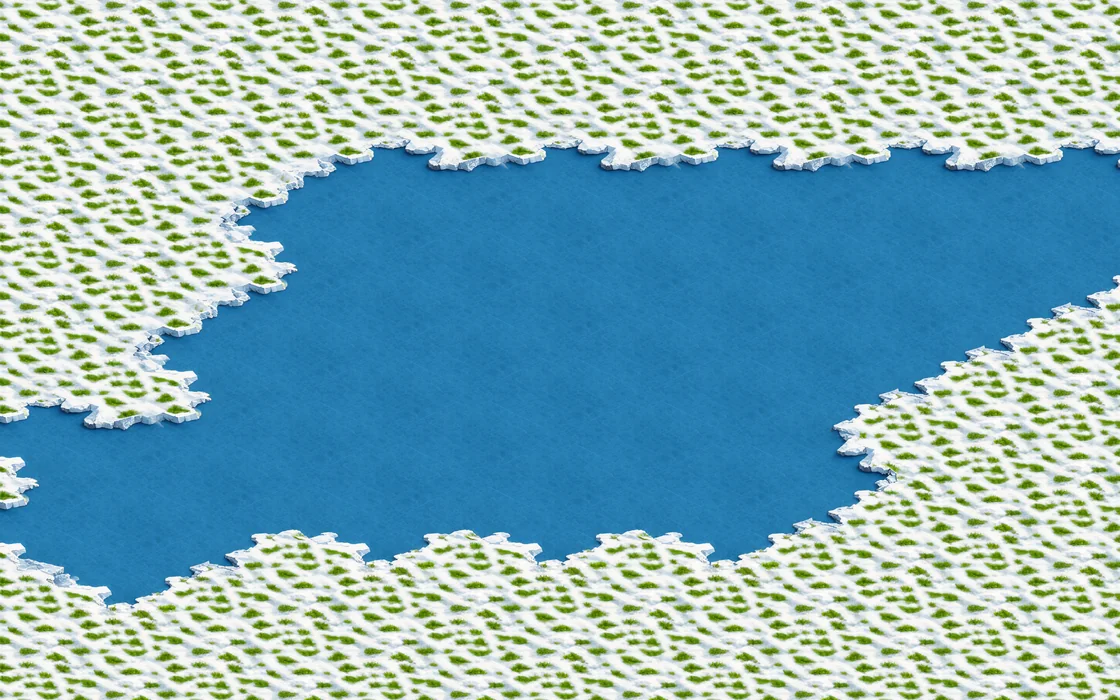
The edited set, in spring thaw Change the whole set with a sentence
Edit this tileset changes all 16 tiles from one sentence: a storm at sea, snow, sunset, another art style, or rocks in place of the foam. The edit comes back as a new set that fits together the same way, and the set you had is kept.
- One sentence
- A new set
- The original kept
What you get out of it
Files for your engine
Export gives the atlas PNG with its 16 tiles, the normal map PNG when the set has one, a Godot 4 TileSet (.tres) with its terrain set filled in (Match Corners for a terrain set, Match Sides for a line set), a JSON of each tile's terrain corners or line sides for any other engine, and, for top-down sets, a Tiled tileset (.tsx). In Godot, fill the map with one terrain, then paint the other with the terrain brush.
- Atlas PNG
- Normal map PNG
- Godot 4 TileSet (.tres)
- Tiled tileset (.tsx), top-down
- JSON
Priced like images
A base tile costs 0.5 credits, the same as an image. Building a tileset costs 1 credit, and so does editing one.
- 0.5 credits a tile
- 1 credit a set or an edit
Normal maps for every tileset
Switch on Normal map in step 2 and the set comes back with a matching normal map of all 16 tiles. Each map here is painted with a set and, tile for tile, with its normal map. Your pointer is the light, as it is when you test the lighting in step 3.
Move your pointer over it: the light follows.
Deck plating into floor grating, Sharp outline: the map and its normal map, painted from the same 16 tiles. More about normal maps
Watch a tileset made in Ludo
From two descriptions to a painted island: base tiles, the 16-tile set, the test map, line sets, the export to Godot 4 and a one-sentence edit that turns the sea stormy.
Transcript: AI Tileset Generator for Godot: Seamless Terrain Tiles From a Description
This island is one tileset, 16 tiles from three descriptions, and in Godot every shore falls into place as you paint.
It works in three perspectives, top-down, isometric and true isometric.
It is not only beaches, think frozen lakes, space stations, lava fields and meadows.
In the Tileset Generator, pick your map's grid, top-down or isometric, describe the ground, and you get a tile that repeats with no seams.
Make one for the water too, then pair the two, and say what lies between them, like white sea foam.
Out come 16 tiles, every way the two can meet, and you can paint a test map right there.
Pick the outline, natural, jagged, rounded or sharp, and set how wide the shore runs.
Describe a line instead, like a boardwalk, and a line set covers every turn, junction and crossing.
Export the atlas and its Godot tileset, fill your map with sand first, then paint the sea, and the shores follow.
One sentence changes the whole set, so here is the same island in a storm.
Describe the ground, then go paint your world, at ludo.ai.
Questions, answered
The short answers. For every mode and setting, see the documentation.
A tileset of 16 tiles made from your own base tiles. A terrain set covers every way Terrain A and Terrain B can meet at a tile's corners, so every edge, corner and inner corner between them is there. A line set covers every way a line leaves a tile: dead end, straight, turn, T and crossing. The set comes as one atlas PNG, with a normal map if you ask for one, a Godot 4 TileSet (.tres), a JSON of every tile and, for top-down sets, a Tiled tileset (.tsx).
Any 2D engine. Every set exports as an atlas PNG of its 16 tiles and a JSON that lists each tile's terrain corners or line sides, which is what you set up an autotile or a rule tile from in Unity, GameMaker, Phaser or your own engine. Two engines get a ready-made file on top: a Godot 4 TileSet (.tres) with its terrain set filled in, and, for top-down sets, a Tiled tileset (.tsx). The normal map PNG comes along when the set has one.
Yes, with Godot's terrain brush. The Godot 4 TileSet (.tres) export comes with its terrain set filled in for all 16 tiles: Match Corners for a terrain set, Match Sides for a line set. Fill the map with one terrain first, such as sand everywhere for a shore, then paint the other terrain with the terrain brush and each cell takes the tile it needs. The set has no tile for a terrain next to an empty cell, so on an empty map the brush has nothing to place: the base fill is what makes it work. Paint a line set as a path.
For a top-down set, Export includes a Tiled tileset (.tsx). Isometric sets export without one; the atlas PNG and the JSON, which lists each tile's terrain corners or line sides, are what you set one up from.
Yes. Step 1 has three map grids: Top-down squares, Isometric 2:1 and True isometric. New tiles are made for the grid you choose, and a tileset blends tiles of the same grid.
A terrain set blends one ground into another, such as grass into sand or sand into water, across a boundary you describe in The transition. Leave Terrain B empty and the tiles are cut out there, for floors over a void, or islands. A line set lays a road, a river, a fence or a wall over the ground. It is built from a line you make in step 1 (Line ↔, Line ↕ or Scatter), or from a ground tile of the line's material, in B · Line made of; A · Underneath is optional, and without it the line comes on its own, on a transparent overlay layer.
Yes. Each tile from step 1 repeats with itself with no visible seam, so it can cover any area of its terrain. Each press of Generate Tiles queues one more tile. Pick an Art Style for the look, or the Reference Image tile in the Art Style picker to give new tiles the look of a picture you choose.
Five: Natural (an organic outline), Smooth (plain curves), Jagged (fine wiggles), Rounded (square corners, rounded) and Sharp (straight runs and square corners). Pick one in step 2, before you generate the set.
Yes. Edit this tileset changes the whole set from one sentence: a storm at sea, snow, sunset, another art style, or rocks in place of the foam. It comes back as a new set that fits together the same way, and the set you had is kept.
Yes. Switch on Normal map in step 2 and the set comes back with a matching normal map of all 16 tiles. In step 3, test the lighting with your pointer as the light, and export it as Normal map PNG next to the atlas. More on how Ludo makes normal maps on the Normal Map Generator page.
A base tile costs 0.5 credits, the same as an image. Building a tileset costs 1 credit, and so does editing one.
Yes. On the Pro and Studio plans, the Ludo CLI, MCP server and API make tilesets too: createTile makes a seamless base tile (0.5 credits), createTileset builds the 16-tile set from two tiles (1 credit) and editTileset changes a whole set from one sentence (1 credit), so a coding agent can make a tileset and drop it into the game it is building. The free, offline Ludo toolbox cuts a tileset image into one PNG per tile or writes the tileset file Tiled, Godot or Unity reads.
Yes. You own the tiles and tilesets you generate with Ludo and can use them however you like, including in commercial games.