Rotoscoping Pixel Art: From Prince of Persia to One Video Clip
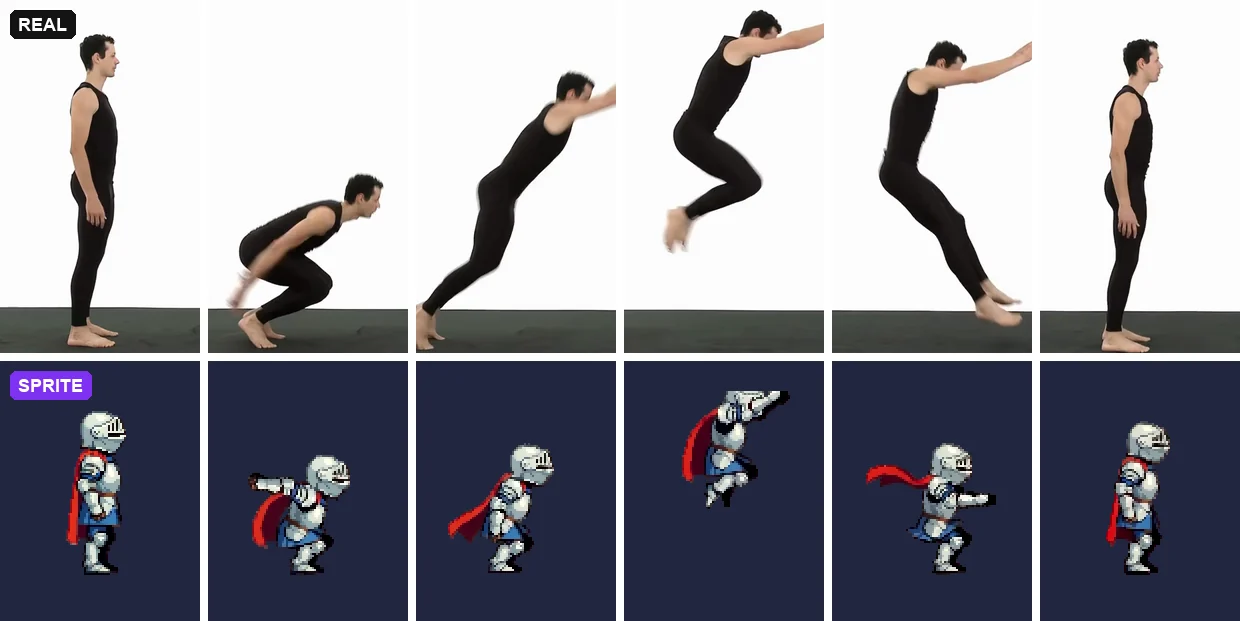
This knight's jump came from a real person. That is rotoscoping, the technique Jordan Mechner used for Prince of Persia in 1989, when getting a few seconds of film into a game took months of work by hand. This post covers how he did it, how we did the same thing with one short clip and Ludo.ai's Transfer Motion, and the three fixes a rotoscoped sprite still needs before it plays right in a game. The Godot project with those fixes is free to download.
What is rotoscoping?
Rotoscoping is animating by tracing: you film real movement, then draw over it frame by frame, so the drawing moves the way the person did. You keep the timing, the weight and the small shifts of balance that are hard to invent. In games, one of the best-known examples is Prince of Persia.
How Prince of Persia was rotoscoped by hand
Prince of Persia came out in September 1989 on the Apple II. Its movement started in 1985, when Jordan Mechner took a VHS camera to the parking lot of Reader's Digest, near his younger brother's school, and filmed his brother, then 16, running, jumping and climbing up on a generator that stood in the middle of the lot. Turning that tape into frames was the slow part:
- He played the tape on a screen and photographed it with a 35 mm camera on a tripod, taking every third frame: 24 frames a second became eight.
- He went over each print with a black marker, using a Magic Marker and Wite-Out to define the lines, to get a series of silhouettes.
- He ran them through a Xerox machine to get a really clean silhouette.
- He digitized the sheets with a small black-and-white video camera pointed at an art stand.
- Then he cleaned up and stylized the figures, and pushed some moves, like the long jump, to be larger than life.
The whole process took "months", in his words. He did it again for the sword fights, from six seconds of a duel in the film The Adventures of Robin Hood. All of this comes from Animation Obsessive's article How the Little Guy Moved, which quotes Mechner on each step and is worth reading in full. There are no pictures from the game in this post, and the person in our pictures is not Mechner's brother: he is a performer in a reference clip, credited below.
Rotoscoping today: one clip, one sprite, Transfer Motion
The modern version needs two things: a short video of the movement, and a still sprite of your character. Ludo's Transfer Motion copies the movement from the video onto the sprite and gives back a sprite sheet. In the app it is a Generation Mode of the Sprite Generator (see animate a sprite from video); we used the Ludo CLI.
The clip. What made ours work:
- 3 to 4 seconds. The CLI's help says clips up to 4 seconds work best. Trim to the move you want.
- A true side view, with the whole body in frame the whole time. A head or a foot leaving the frame leaves the model guessing.
- A steady camera and a plain background, with clothes that contrast with it. Ours was a dark bodysuit on a white studio wall.
- Real speed, not slow motion, or the timing you are copying is wrong from the start.
The rights. Film it yourself, or use footage you are allowed to adapt. We did not film ours: it is "Forward Jump Animation Reference | Athletic Male" by Endless Reference, published on YouTube under CC BY 3.0, which allows commercial use and changes as long as you credit the author and say what you changed. A scene from a film or another game is not that. The full credit line is at the end of this post.
The sprite. Our knight is a Ludo Sprite in the 16-Bit Pixel style, from ludo image create --image-type sprite --art-style "16-Bit Pixel" --perspective Side-Scroll --n 4. We kept the one of four that came back with a closed helmet. Ludo's docs ask for a sprite whose pose is close to the clip's first frame, so he stands side-on, facing right, like the performer.
The transfer. This is the command we ran:
$ ludo sprite transfer-motion --video jump.mp4 --image knight.png --no-loop \
    --model hydra --duration 4 --frames 49 \
    --margin-ratio-horizontal 0.4 --margin-ratio-vertical 0.35 \
--prompt "Copy only the movement. The character is the small pixel-art knight from the sprite in every frame: closed steel helmet with visor, steel armor, short red cape, blue tunic, armored boots, 16-bit pixel art with flat colors. Never draw a human body, bare skin, bare feet or a black bodysuit."--no-loop: a jump starts and ends in different places. By default the sheet is trimmed to its best loop, which a one-off move does not want.--model hydra --duration 4: Hydra is the model for your own footage, and 4 seconds holds our 3.9-second clip without compressing it.--frames 49: a 7 x 7 sheet. The help suggests about 16 frames per second of duration.- The margins: the help recommends about 0.15 and more for motion that goes up or sideways. A jump does both, and the cape swings out behind.
--prompt: our identity prompt. It describes the knight and lists what must never appear.
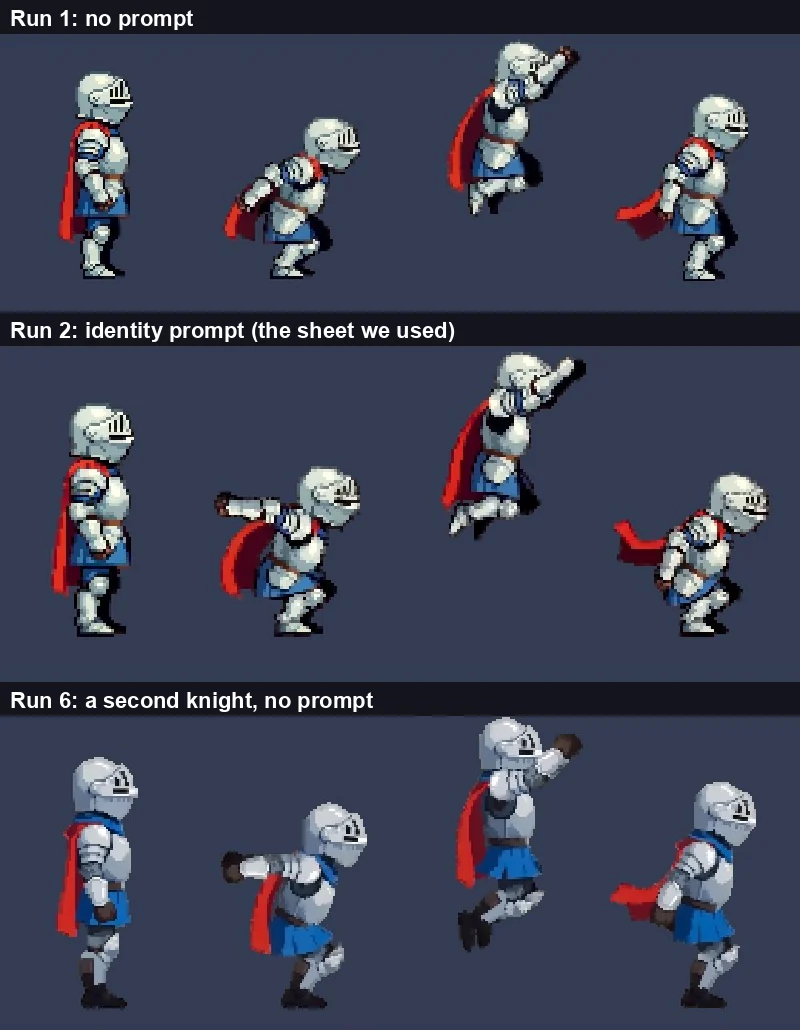
What came back. 49 frames of the knight, 2.67 seconds long at the sheet's own 18.4 frames a second, with the arm swing, the deep crouch, the jump, a crouched landing and the stand. We made 7 runs in our tests, 4 on this clip and 3 on an outdoor parkour clip, and in all 7 the knight kept his own armor: no skin, bare feet or black bodysuit came through, with the identity prompt or without it, and on a second knight too. One thing to watch: on the parkour clip, the knight's far arm and leg came back solid black, probably as shading. It did not happen on the studio clip. Each 4-second run cost 10 credits.
Making a rotoscoped sprite play right in a game
The poses were right. Three other things were not, and all three are jobs for the game rather than the art.
1. Timing: each frame as long as the real pose. The sheet does not follow the clip's clock. Our 3.9-second clip came back as 2.67 seconds: the slow start was squeezed and the air time stretched. Pose to pose, the person is in the air for 0.36 seconds of the clip, from the take-off pose at 1.67 s to the landing pose at 2.03 s. The knight's frames from take-off to landing, 15 to 33, last 1.03 seconds at the sheet's own rate. Played as it came back, he leaves the ground while the person is still crouching, then floats.
The fix keeps every frame and changes only how long each stays on screen. A few keys pin a sheet frame to a time in the clip (start, arm swing, crouch, take-off, landing, stand, end), written as clip seconds : sheet frame: 0:0, 0.6:6, 1.35:11, 1.67:15, 2.03:34, 3.6:47, 3.9:48. Frames between two keys share the time between them evenly. Godot's SpriteFrames has a duration per frame, so with the animation speed at 1 FPS, each frame's duration is its length in seconds. It is the same kind of choice as Mechner's "every third frame": which frames you show, and for how long. From the sample's jump_timing.gd:
## Reference timing: the animation runs at 1 FPS, so each frame's relative duration is its length in seconds.
static func add_timed(sf: SpriteFrames, anim: String, frames: Array[AtlasTexture], seconds: PackedFloat64Array) -> void:
    sf.add_animation(anim)
    sf.set_animation_speed(anim, 1.0)
    sf.set_animation_loop(anim, false)
    for i in frames.size():
        sf.add_frame(anim, frames[i], seconds[i])


## The time in the clip at which sheet frame `f` starts. `keys` is [[clip seconds, sheet frame], ...] in order;
## frames between two keys share the time between them evenly.
static func clip_time(keys: Array, f: float) -> float:
    for k in range(keys.size() - 1):
        var a: Array = keys[k]
        var b: Array = keys[k + 1]
        if f <= float(b[1]):
            return lerpf(float(a[0]), float(b[0]), (f - float(a[1])) / (float(b[1]) - float(a[1])))
    return float(keys[-1][0])


## How long each of `count` frames stays on screen under the keys. The last frame has no next key, so it gets
## `last_frame_s`.
static func frame_seconds(keys: Array, count: int, last_frame_s: float) -> PackedFloat64Array:
    var out := PackedFloat64Array()
    for f in count:
        out.append(clip_time(keys, f + 1) - clip_time(keys, f) if f + 1 < count else last_frame_s)
    return out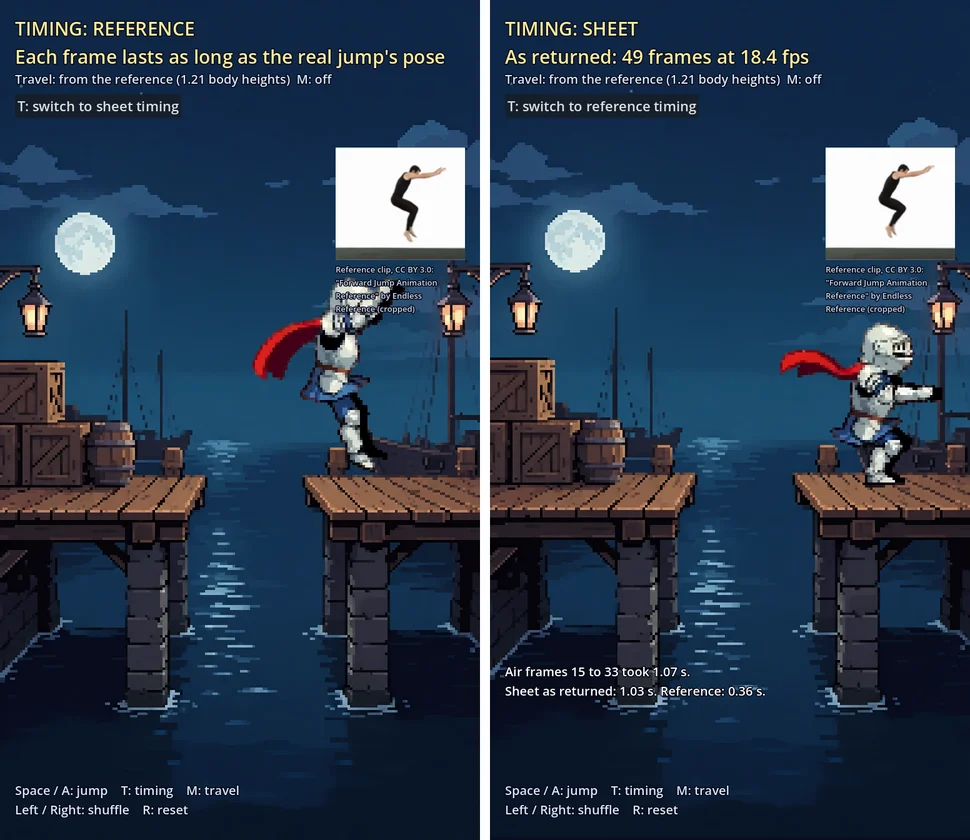
2. Travel: move him as far as the person moved. The sheet jumps in place, because Transfer Motion centers the character in every cell. The person does not: his feet travel 566 pixels for a body 469 pixels tall, 1.21 body heights. Measuring that had a catch. The camera follows him, panning about 470 pixels over the clip, so his position on screen says he barely moves. The sample's tools/measure_travel.py finds him with a brightness threshold (the black bodysuit is darker than both the wall and the mat), measures how far the mat's texture slides between frames, and adds that back. It also saves the shape of his path across the gap, from 0 at take-off to 1 at landing.
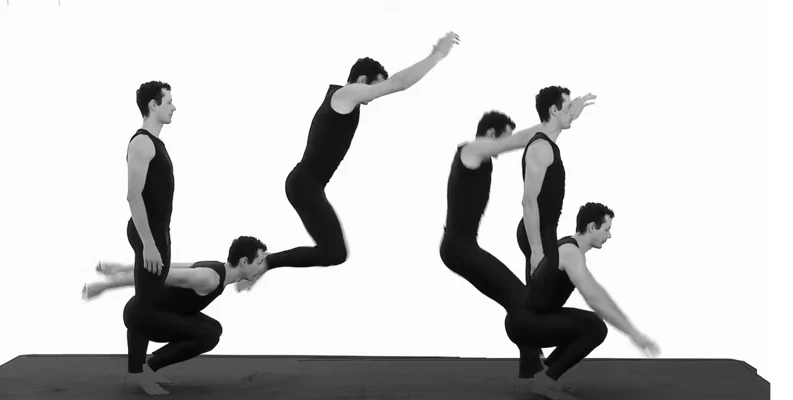
The knight is 328 pixels tall in the sheet, so he travels the measured 1.206 x 328 = 396 pixels while his air frames play, shaped by that curve and snapped to the art's 4-pixel grid. Because the curve is read from the animation's own progress, the travel follows whichever timing is playing. From knight.gd:
# The person travelled travel_heights of his own height; the knight travels the same share of his.
travel_px = float(travel["travel_heights"]) * float(jc["knight_height"])
...
# Where are we in the air? 0 at the take-off frame, 1 at the landing frame, read from the animation itself,
# so the travel follows whichever timing is playing.
var f := jump_sprite.frame + jump_sprite.frame_progress
...
# The travel runs over the air frames only (take-off frame + 1 to the landing frame): the take-off frame still has
# a foot on the ground, so moving him during it would slide that foot.
var c := JumpTiming.sample_curve(air_curve, (f - takeoff_frame - 1) / float(landing_frame - takeoff_frame - 1))
if use_travel:
    _fine_x = _x0 + travel_px * c
    position.x = snappedf(_fine_x, grid)
The level was drawn for that jump: a Ludo background in the 32-Bit Pixel style, chosen because its pixel blocks are the same 4 pixels as the knight's, with a 160-pixel gap between two piers. Take off from too far back and he lands short and falls in the water.
3. Feet: keep the planted boot still. Because the sheet centers the knight in every frame, his feet drift inside the frame. While he crouches and pushes off, the boot on the ground moves 52 pixels to the left over frames 10 to 15. After landing, it moves 44 pixels to the left over frames 34 to 40. Both are at the sheet's size, where he is 328 pixels tall. Drawn at one fixed spot, he skates on the pier.
The sample's tools/measure_feet.py finds the planted boot in every ground frame: it matches the lowest 28 rows of each frame to the frame before, at the sideways shift where they overlap best, and adds up the shifts. It writes the boot's position and the body's center for every frame to data/knight_feet.json.
The fix draws each ground frame shifted so that boot stays on one spot: the take-off spot before the jump, the landing spot after it, 396 pixels apart, which is the measured travel. In the air, the body's center moves from where it was at take-off to where it will be at landing, along the travel curve, and never steps back. The travel runs over frames 16 to 33 only, because frame 15 still has a toe on the ground. As with the timing, the frames are never changed, only where each one is drawn. From knight.gd:
## How far (cell pixels) frame `i` is drawn from where the sheet puts it, so the feet do not slide. Ground frames before
## take-off and after landing: the planted boot sits where frame 0 has it. Air frames: the body's centre goes from its
## take-off place to its landing place along the same curve as the travel (`c`, 0 to 1), snapped to the art's grid.
func feet_shift(i: int, c: float) -> float:
    var b0 := float(feet[0]["boot"])
    if feet[i].get("boot") != null:
        return b0 - float(feet[i]["boot"])
    var s0 := b0 - float(feet[takeoff_frame]["boot"])
    var s1 := b0 - float(feet[landing_frame]["boot"])
    var c0 := float(feet[takeoff_frame]["centroid_x"])
    var c1 := float(feet[landing_frame]["centroid_x"])
    return s0 + c0 - float(feet[i]["centroid_x"]) + c * (s1 + c1 - s0 - c0)
...
    else:   # air frame: snap the drawn place once (not origin and shift apart), and never let the body step back
        var left := snappedf((_fine_x if use_travel else _x0) + feet_shift(i, c), grid)
        var cx := float(feet[i]["centroid_x"])
        while left + cx < _last_body:
            left += grid
The headless smoke test checks it with both timings: the planted boot moves 0 pixels on every ground frame, before take-off and after landing, and the body's center never steps back in the air.
The free Godot project
Harbour Jump is the sample from this post: one level, one knight, one rotoscoped jump, for Godot 4.7 or later. Open the folder and press Play.
- Space (or A on a gamepad): jump the gap.
- T: switch between reference timing and the sheet's own timing, labelled on screen.
- M: travel on or off. Off, the knight jumps in place, as the sheet does.
- Left / Right: try other take-off spots along the pier.
- R: reset.
Inside: the knight's jump and idle sheets, the harbour, the reference clip as frames, the retime keys, the measured travel and the knight's measured feet as JSON, the scripts that measure them on your own clip and sheet (tools/measure_travel.py, tools/measure_feet.py), and a headless smoke test (godot --headless --path . -- test=1). The code is MIT and the art CC BY 4.0; the jump keeps its motion source's CC BY 3.0 credit. The README lists every Ludo command and setting we used.
Paste this into your coding agent
To do the same with your own hero, make a sheet from your clip with Transfer Motion as above (in the app or with the Ludo CLI), then give a coding agent the sheet, the clip and this:
I have a sprite sheet made from a video of a real person (Ludo Transfer Motion) and the video itself.
In my Godot 4 project:
1. Build the animation's SpriteFrames with one duration per frame from retime keys [[clip seconds, sheet frame], ...]:
   frames between two keys share the time between them evenly; set the animation speed to 1 FPS so each frame's
   duration is its length in seconds. Never change the frames, only their durations.
2. Measure the person's horizontal travel on the video (threshold the person against the background, track the
   body centre and the ankles per frame, correct for camera pan with the floor texture) and save it as JSON:
   travel in body heights and a 0..1 curve over the air time.
3. During the air frames, set the character's x from that curve, scaled to travel_heights x the character's height
   in pixels, snapped to the art's pixel size. On the landing frame, check for ground under the feet; without it,
   fall.
   The sheet's feet drift inside the cells (the character is centred in each cell): measure, per ground frame, the
   planted boot's x in the cell (match the lowest rows of each frame to the previous frame by the best sideways
   shift) and draw each ground frame so that boot stays on one spot; in the air, move the body's centre smoothly from
   its take-off place to its landing place, never backwards.
4. Add a key that switches between the sheet's own even timing and the reference timing, labelled on screen.
Use nearest filtering and keep the sprite and the level on the same pixel size.
Is rotoscoping cheating?
It is tracing, and some animators will always say so. It also gave a 1989 game movement people still remember, and Mechner did not stop at the trace: he cleaned the figures up, stylized them and made the long jump bigger than any real jump. Our knight took a few runs of one command rather than months of tracing, and the game still needed its timing and its travel from the reference, and feet that stay put. So where do you stand?
- A. Yes, it's tracing
- B. No, 1989 did it
- C. Only with cleanup
- D. Players can't tell
Answer with a letter in the comments under the Short, and tell us why.
Turn a short clip into a sprite sheet of your own character.
Try Transfer MotionCredits
Jump footage: "Forward Jump Animation Reference | Athletic Male" by Endless Reference, licensed CC BY 3.0. Cropped, slowed, traced into silhouettes, and used as the motion reference for the knight. The pictures of the person in this post are frames of that clip, cropped, laid side by side or overlaid.
History: Animation Obsessive, "How the Little Guy Moved". The pictures in this post contain no part of the game. The Short shows about 3.7 seconds of Prince of Persia (1989) gameplay (Jordan Mechner / Broderbund) for commentary, from an Apple II capture by LordKarnov42, licensed CC BY 3.0, which covers the capture, not the game.