Pose Control, Animation Presets, and New Export Tools for Sprite Animations
Generating a great sprite is one thing. Turning it into a full set of game-ready animations is another.
You need your character in different poses. You need those poses animated from multiple angles. You need all of it exported at consistent sizes, properly aligned, in formats your engine actually accepts. For a solo developer or a small team, that pipeline can eat days.
This update changes that. We've revamped the Pose Generator, added an Animation Presets library, and built two new export tools — Animation Packs and Animation Sequences — so you can go from a single static sprite to a complete, game-ready animation set without leaving Ludo.
Here's what's new.
Revamped Pose Generator
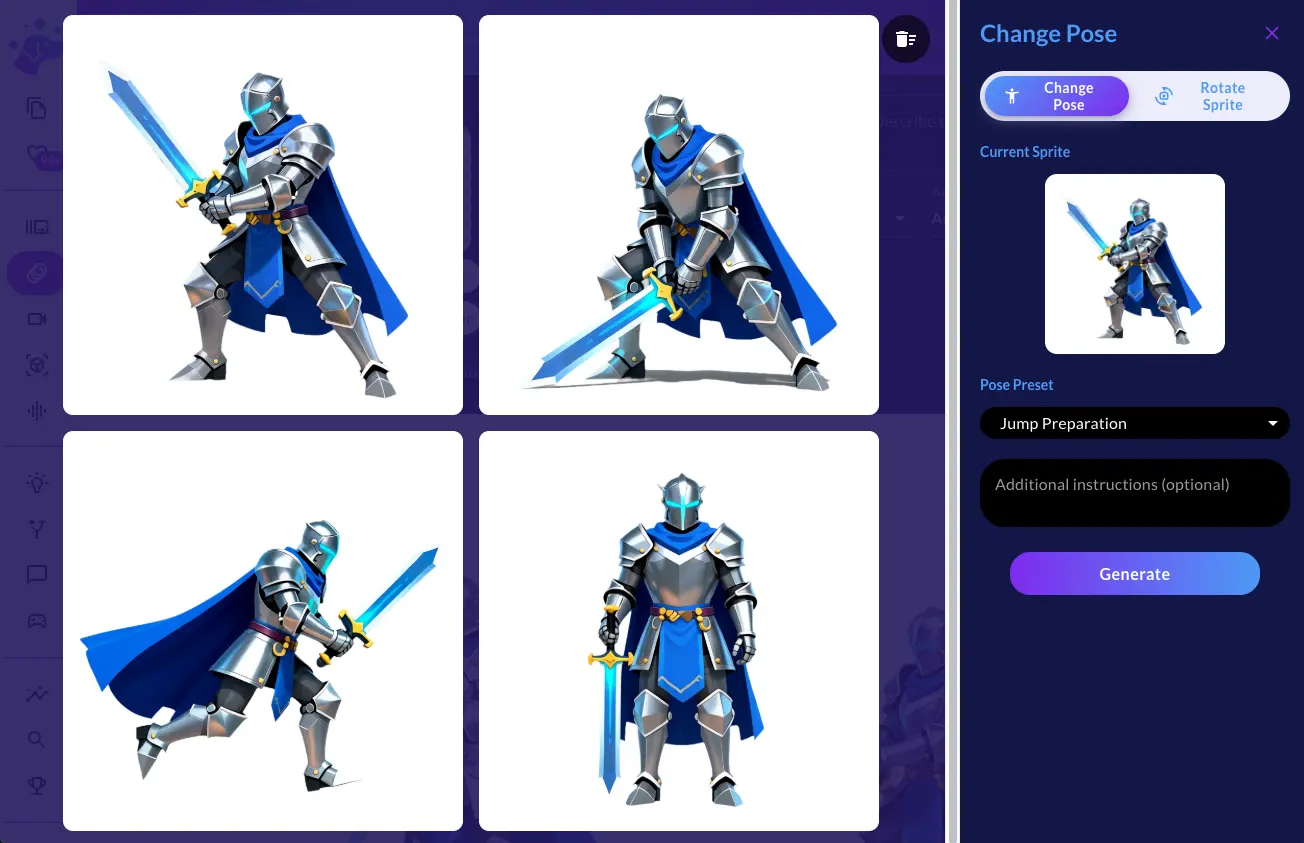
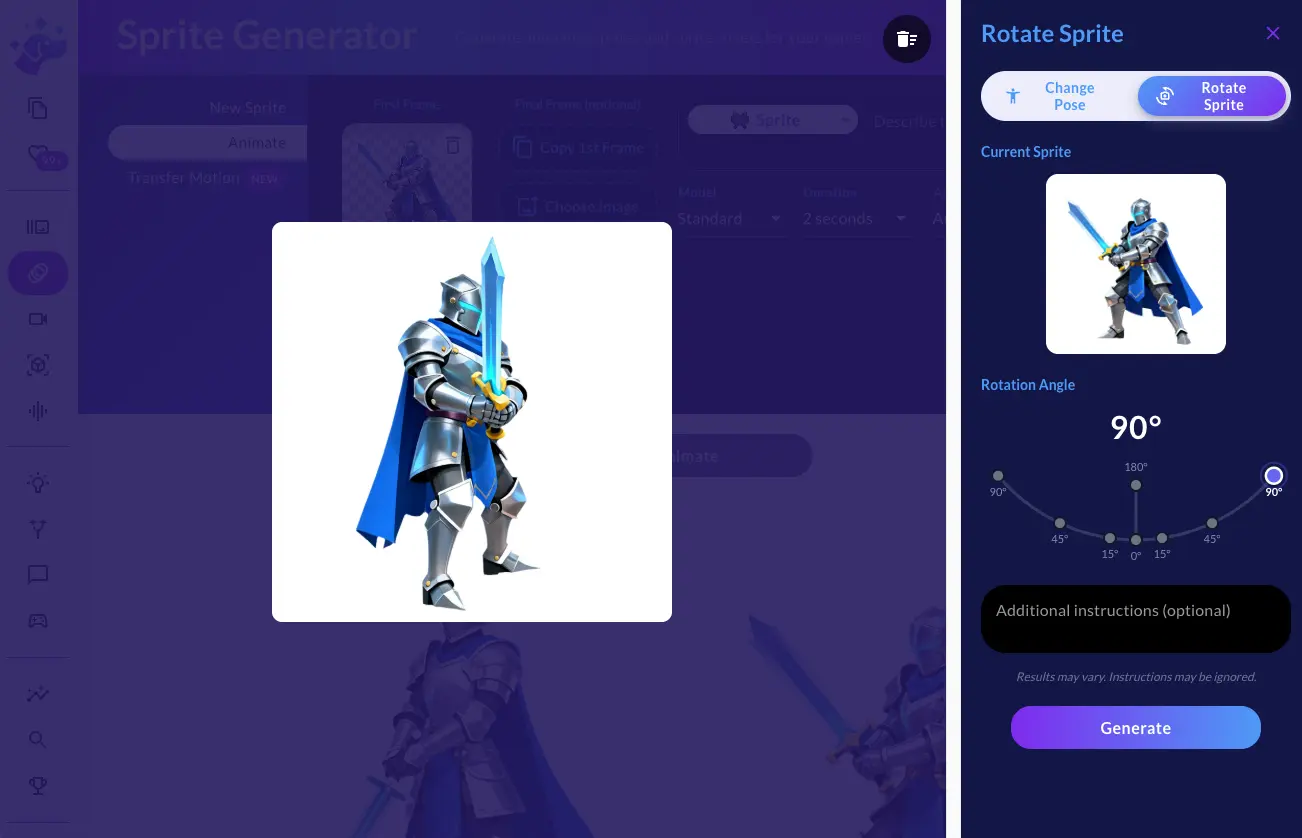
The Pose Generator now gives you two distinct modes to manipulate your sprites: Change Pose and Rotate Sprite.
Change Pose lets you select from preset poses — standing, running, jumping, crouching, and more — or write a fully custom description. Pick a pose, hit generate, and Ludo produces a new variation of your sprite in that position. If you want to create new poses or rotations based on a specific pose result, click Create Variation to use it as the new base and keep refining. You can iterate as many times as you need until the pose is exactly what you want.
Rotate Sprite is built around a new interactive arc selector. Click an angle — anywhere from -90° to 180° — and Ludo generates your character rotated to that camera angle. Need a side view of a character you only have from the front? Select 90° and generate. It's that direct.
Both modes feed into the same iterative loop: generate, evaluate, use in your animation or keep refining. Your selections and results persist between sessions, so you can pick up exactly where you left off.
Animation Presets: Consistent Motion Across Every Angle
Transfer Motion lets you take a reference video and apply its motion to a static sprite. The question was always: where do you get the right reference animation?
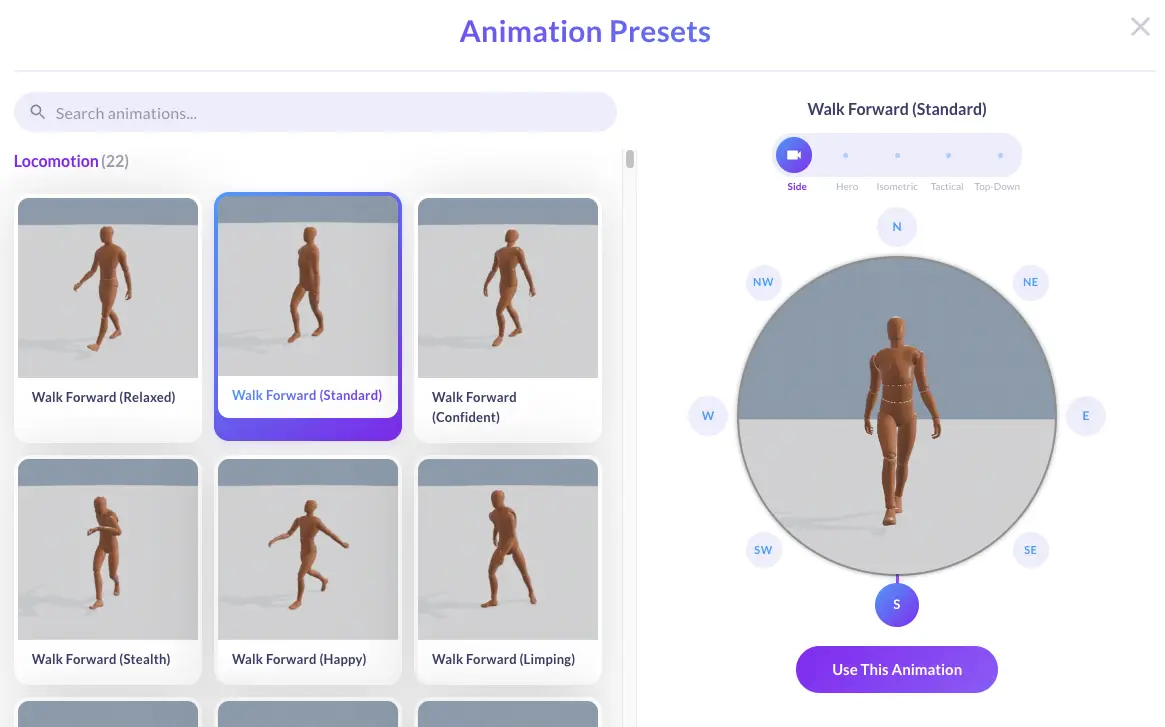
Animation Presets answers that. It's a searchable library of pre-made animations organized by category — idle, run, attack, walk, and more. But the real power isn't just convenience. Each preset comes with multiple perspectives (Side, Hero, Isometric, Tactical, Top-Down) and eight directions per perspective (N, NE, E, SE, S, SW, W, NW).
This is what makes presets a game-changer for top-down and isometric games. If you're building a game where the player sees your character from above or at a three-quarter angle, you need every animation — idle, walk, attack — rendered in every direction the character can face. That's potentially dozens of sprite sheets for a single character.
With presets, the workflow looks like this:
- Open the Animation Presets library from the Transfer Motion tab
- Browse by category or search by name
- Select a preset — say, "Walk"
- Choose your perspective — say, "Isometric"
- Use the interactive compass to pick a direction — start with East
- Click Use This Animation — the preset is sent to Transfer Motion, which generates the sprite sheet
- Repeat for every direction you need
Because you're using the same preset across all directions, the motion stays consistent. Your character walks the same way whether they're facing north, southeast, or west. The animations match. The timing matches. You're building a coherent set, not stitching together mismatched results.
The compass selector makes this fast. Pick a direction, preview the animation right in the compass center, and confirm. No hunting for reference videos. No hoping two clips have similar timing.
Generate Before, After, and Transition
Once you have a few animations, you'll often need to connect them. A walk cycle that leads into a run. An idle that flows into an attack. The gap between two clips that doesn't quite match.
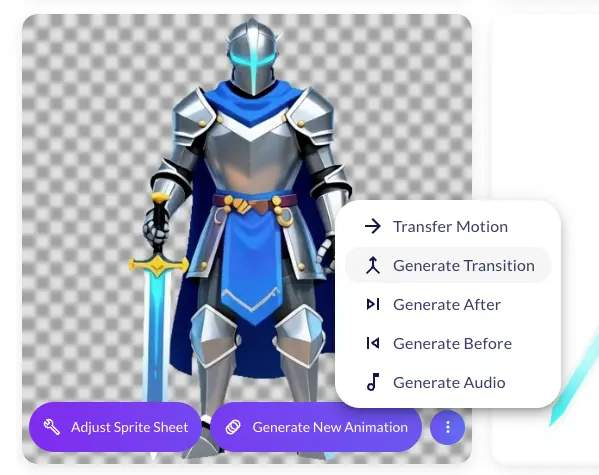
Every generated animation now has three actions for exactly this:
Generate After takes the last frame of your current animation and uses it as the starting point for a new one. All the original settings — frame count, frame size, crop, loop — carry over automatically. The result is a new animation that picks up exactly where the previous one ended.
Generate Before works in reverse. It takes the first frame of your current animation and sets it as the target end frame for a new generation. The AI produces an animation that lands precisely on that frame, giving you a lead-in to an existing clip.
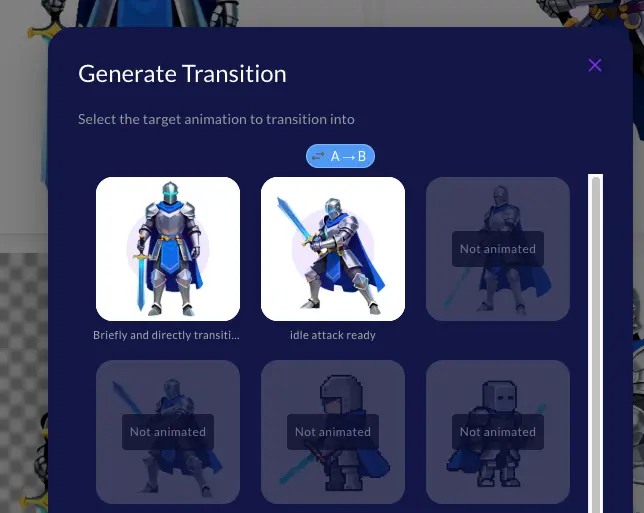
Generate Transition bridges two animations directly. Select a source animation, then pick a target from your generated sprites. Ludo takes the last frame of the source and the first frame of the target and generates a short transition between them — a 1.2-second bridge clip that smoothly connects the two. You can flip the direction if you need the transition to go the other way.
These three tools make it easy to build out complete animation chains without manually matching frames. Generate a walk, generate an attack after it, then create a transition between attack and idle. Each piece connects cleanly because the AI is working from the actual frames of your existing animations.
Two New Export Tools
Once you've generated your animations, you need to get them into your game. We've added two export tools that handle the two most common scenarios.
Export as Animation Pack
You've generated idle, walk, run, and attack animations for a character. You need all of them exported as separate sprite sheets, but at consistent sizes so they're drop-in ready for your engine.
That's what Animation Pack does.
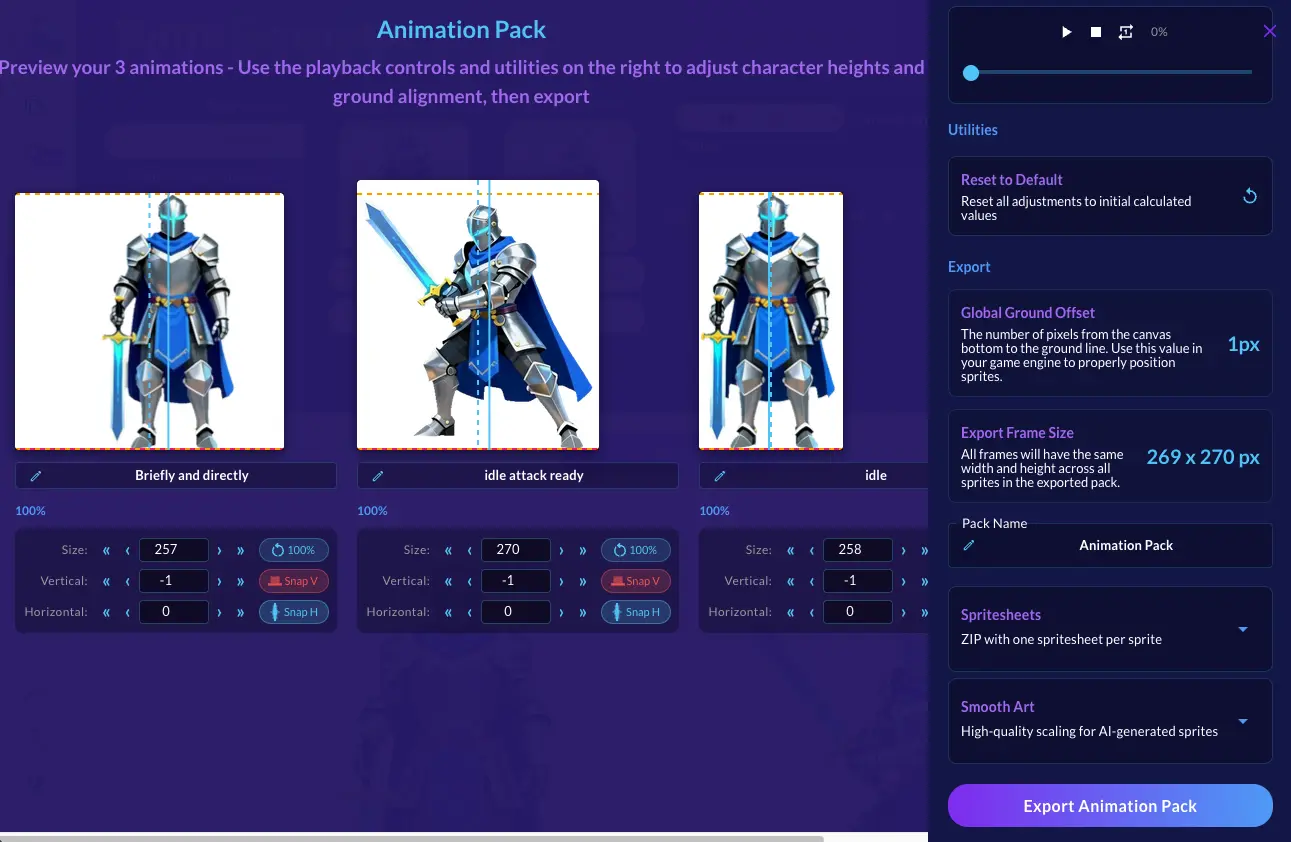
Select any number of generated animations and Ludo automatically normalizes them — scaling every animation so the character is the same height across the board. From there, you get per-animation controls to fine-tune:
- Size — adjust the character height with precise pixel controls or reset to the normalized default
- Vertical position — shift the character up or down, or hit Snap V to automatically align to the ground line
- Horizontal position — shift left or right, or hit Snap H to center the character
A live preview at the top of the modal plays all your animations side by side, so you can see exactly how they'll look together before exporting.
Export as sprite sheets (one per animation, organized in folders) or individual frames. Choose between Smooth Art and Pixel Art mode — pixel art uses nearest-neighbor scaling to keep your edges crisp. Everything is packaged into a single ZIP.
The result: a folder of sprite sheets you can drag into Unity, Godot, or any engine, ready to use.
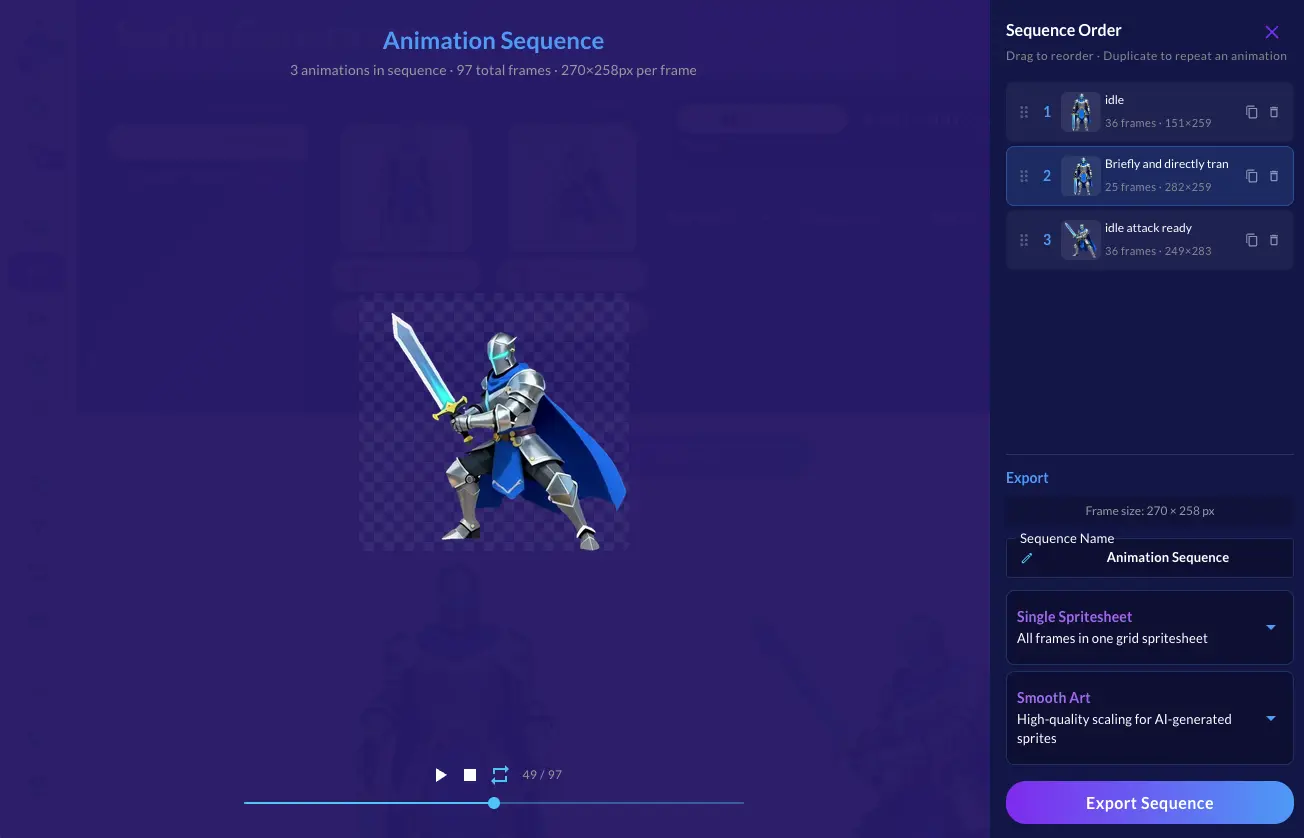
Export as Animation Sequence
Sometimes you don't need separate animations — you need them chained into one continuous sequence. A character that goes from idle to walk to run. A combo attack that flows through three distinct motions. A cutscene animation that plays start to finish.
Animation Sequence handles this.
Select your animations, then drag them into order. Duplicate entries to repeat a motion, or remove ones you don't need. Ludo takes care of the hard part: automatically aligning consecutive animations so the transition between them is smooth.
Under the hood, the system analyzes the last frame of each animation and the first frame of the next, matching the character's position and scale so there's no jarring jump between them. The alignment is content-aware — it looks at the actual pixels, not just the frame boundaries.
The preview plays your full sequence in real time with playback controls and a frame scrubber, so you can verify every transition before exporting.
Three export formats:
- Single sprite sheet — all frames in one grid, ready for a simple animation player
- Separate sprite sheets — one per original animation, numbered in sequence order
- Individual frames — every frame as its own PNG, for maximum flexibility
Smooth Art and Pixel Art modes apply here too. Everything exports as a ZIP.
The Full Picture
These tools work together. Generate a sprite. Use the Pose Generator to get the angles you need. Apply motion with Transfer Motion and Animation Presets to build a consistent set across directions. Then export everything as a normalized Animation Pack for your engine, or chain them into sequences.
What used to be a multi-tool, multi-day pipeline is now a single workflow inside Ludo.
Try it out at ludo.ai and come show us what you build on Discord.