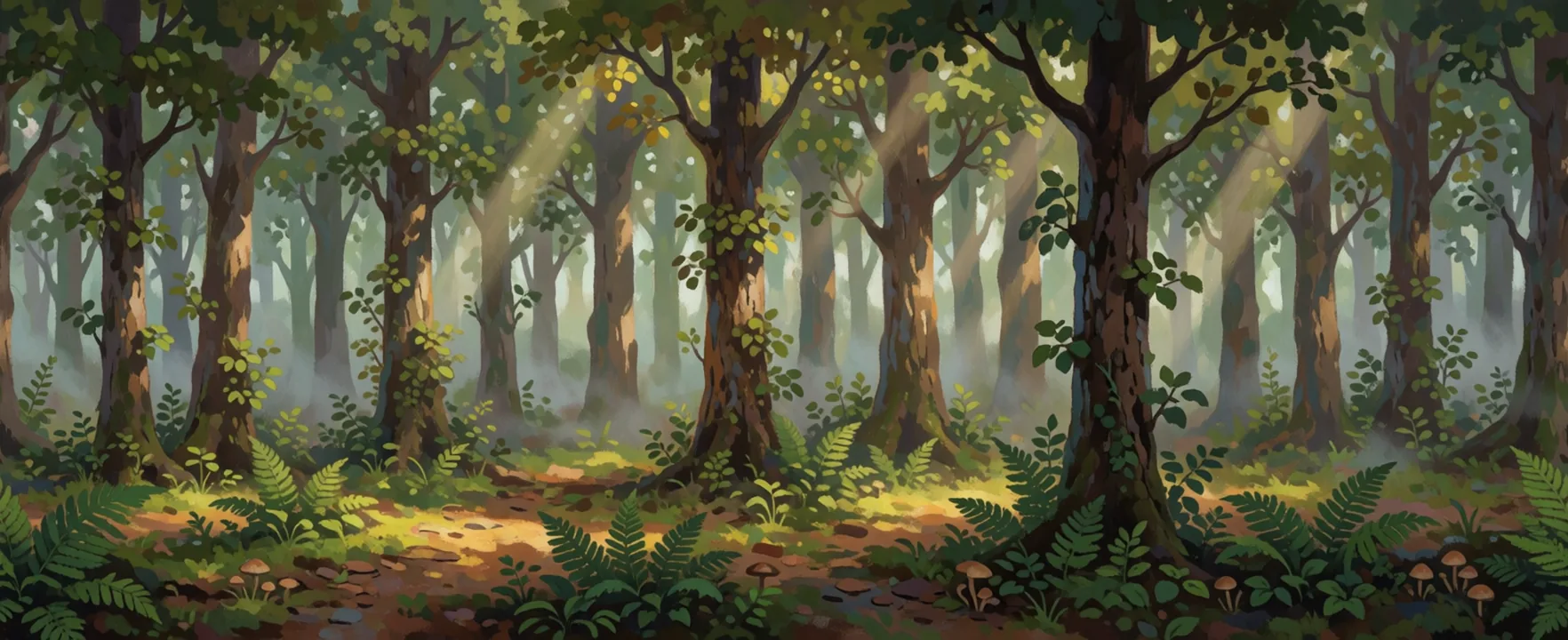
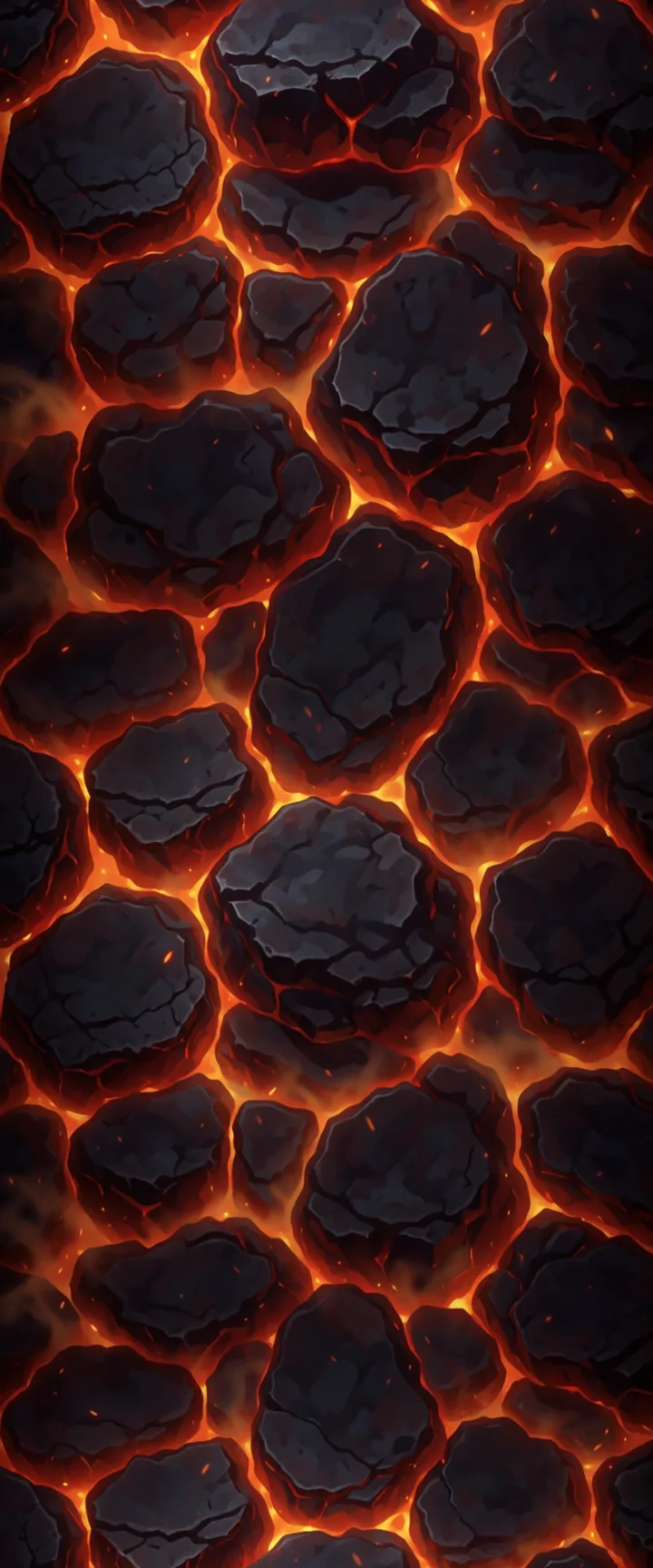
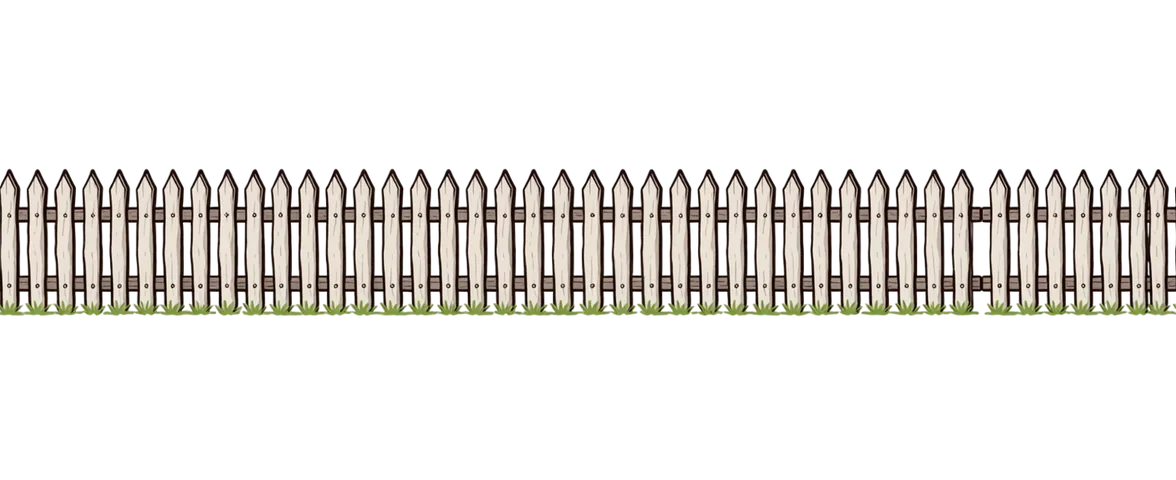
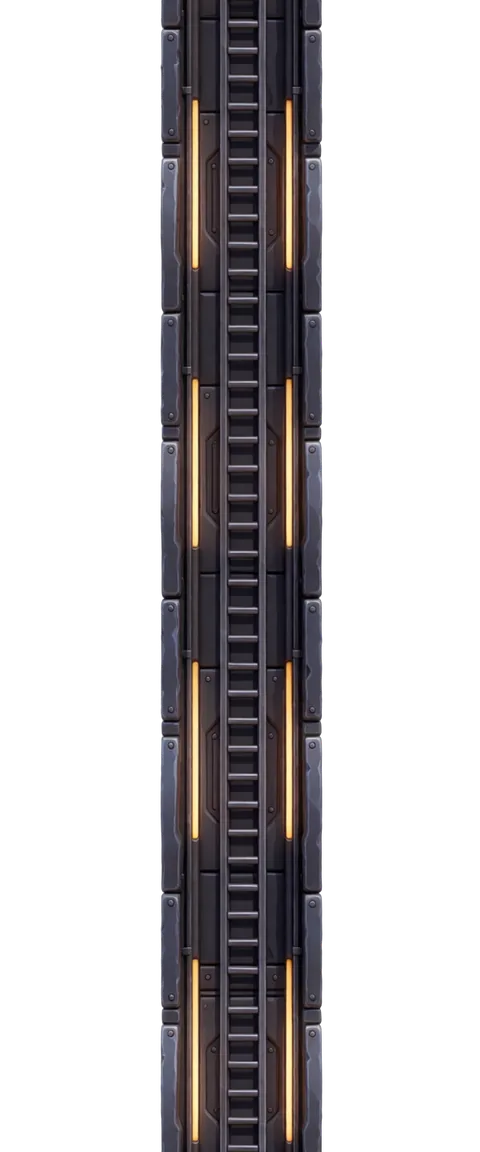
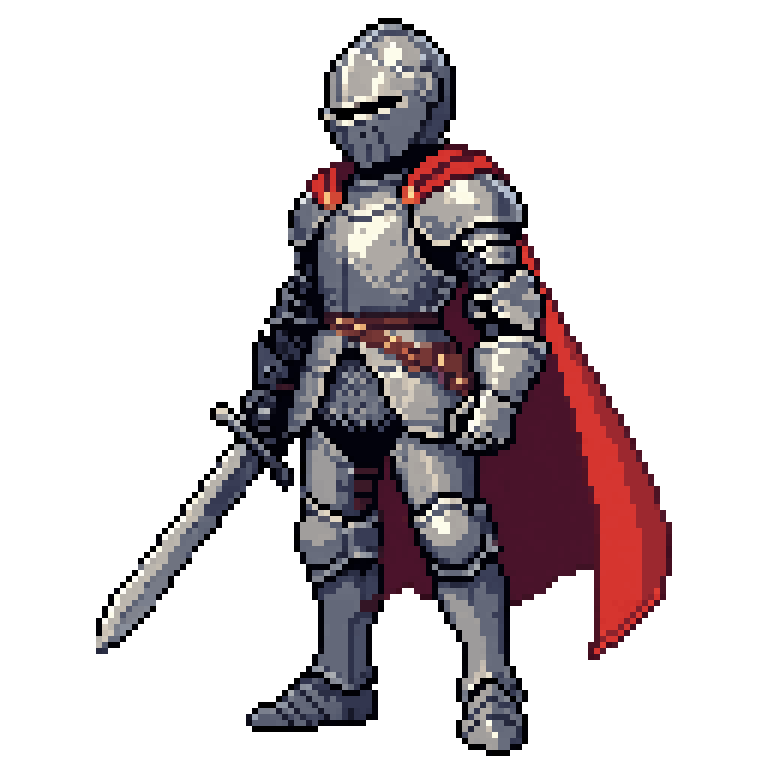
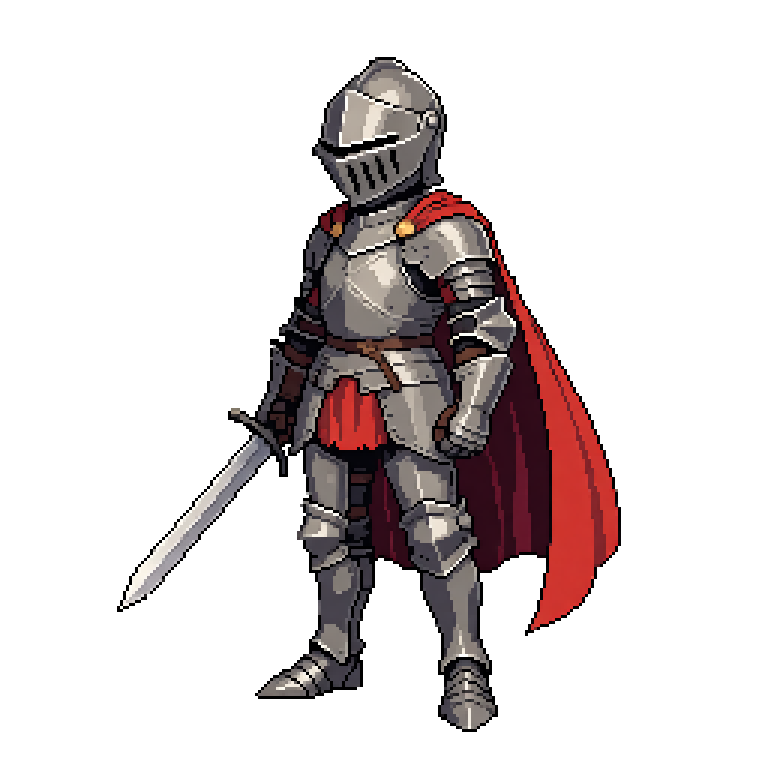
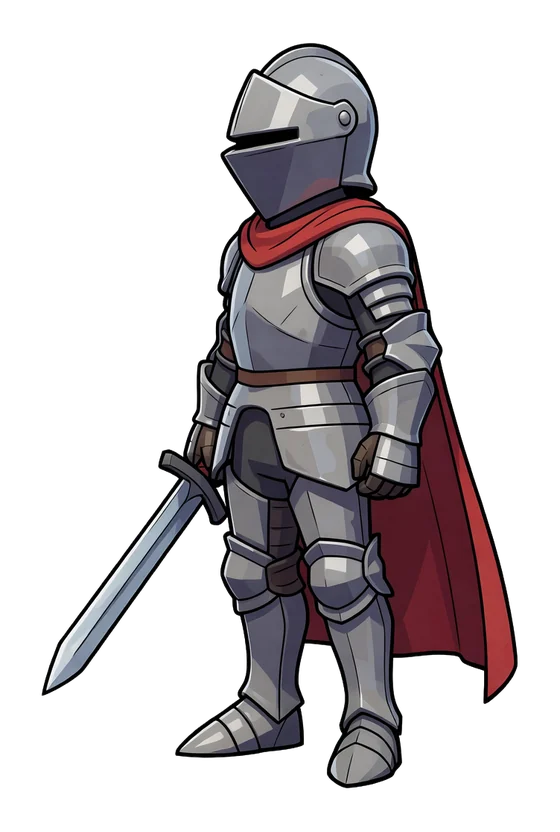
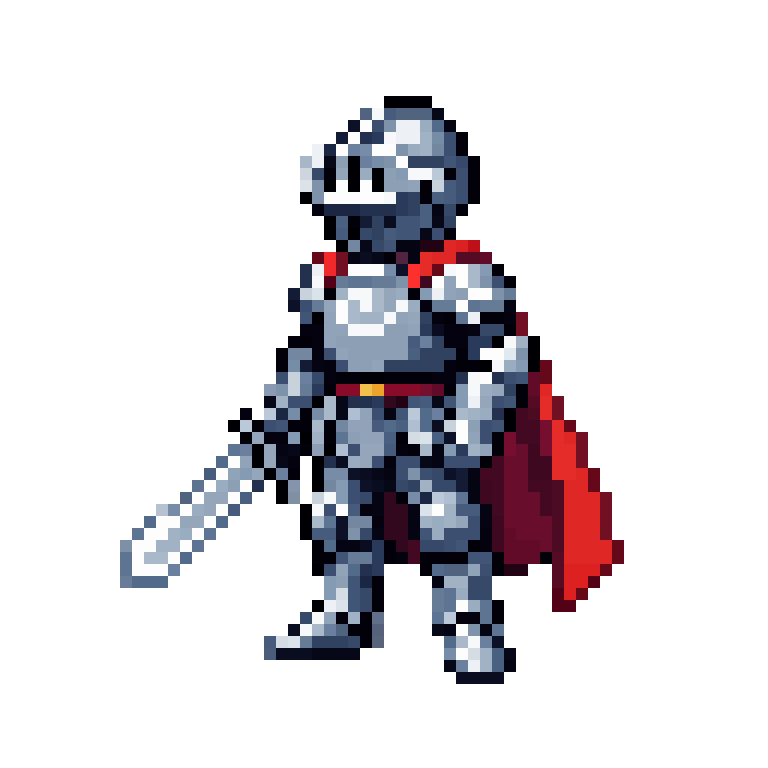
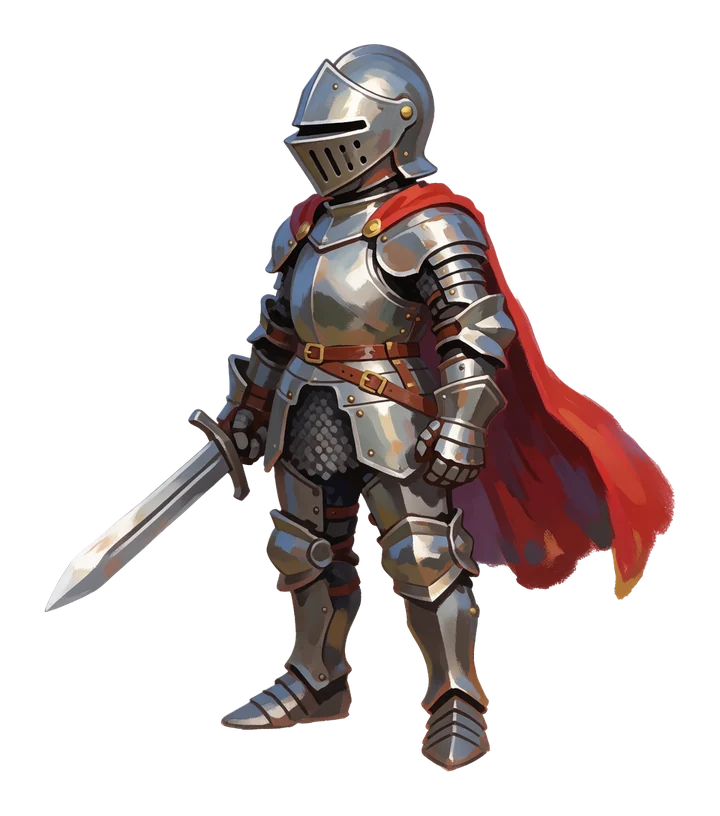
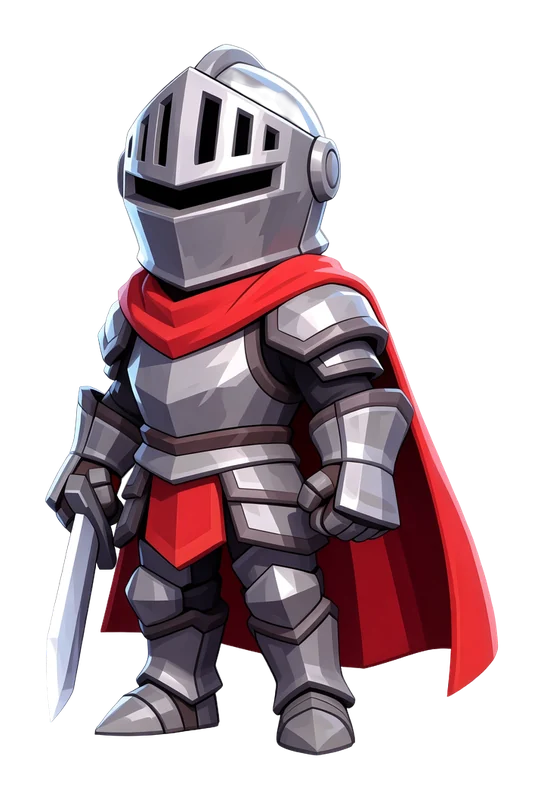
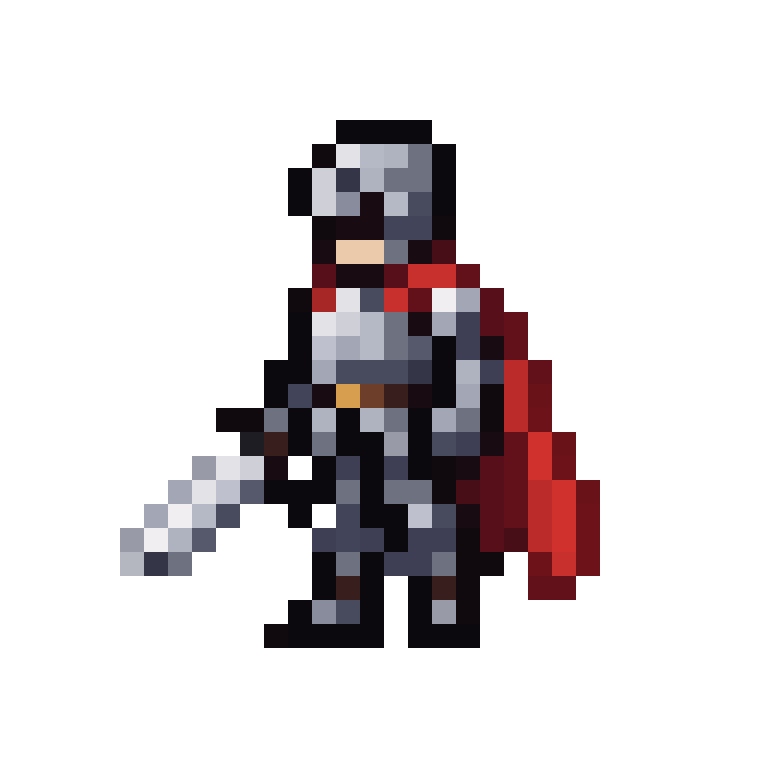
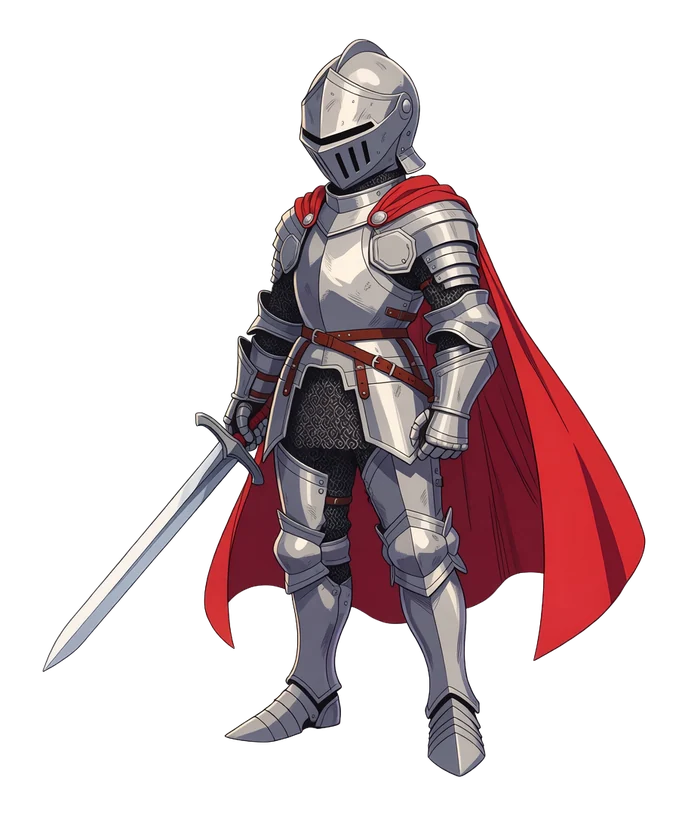
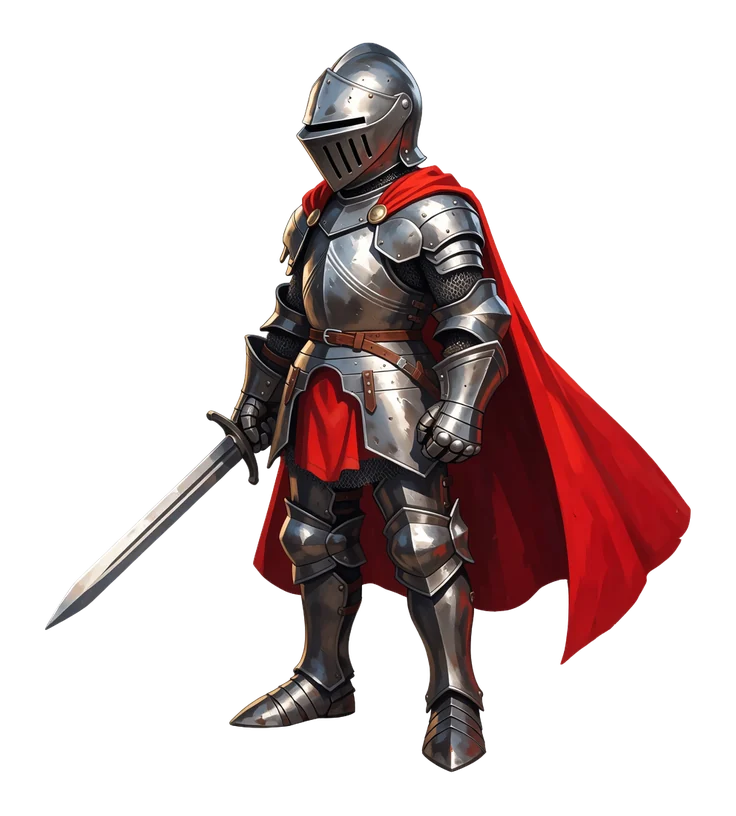
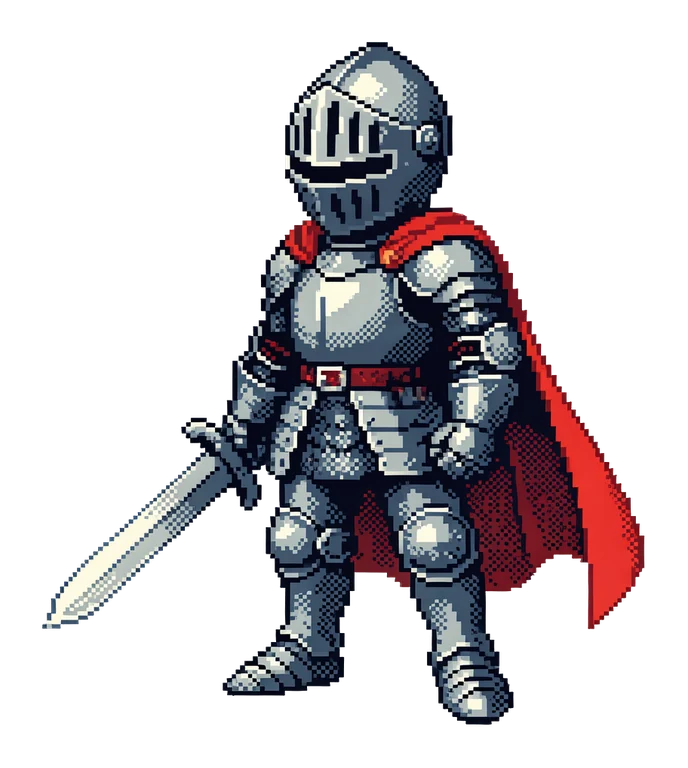
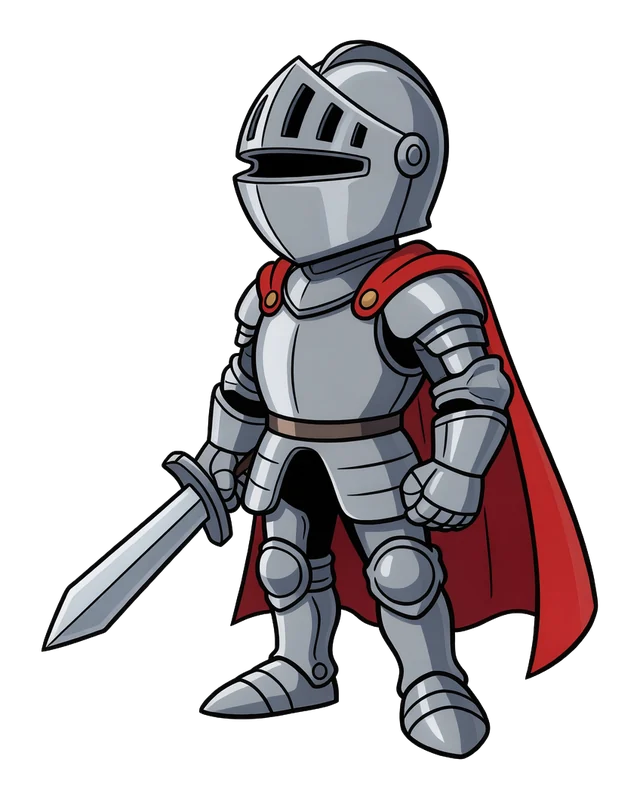
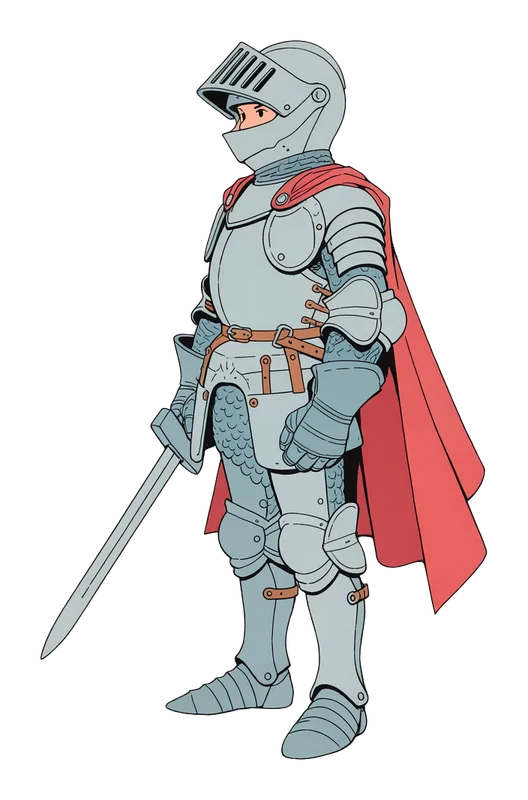
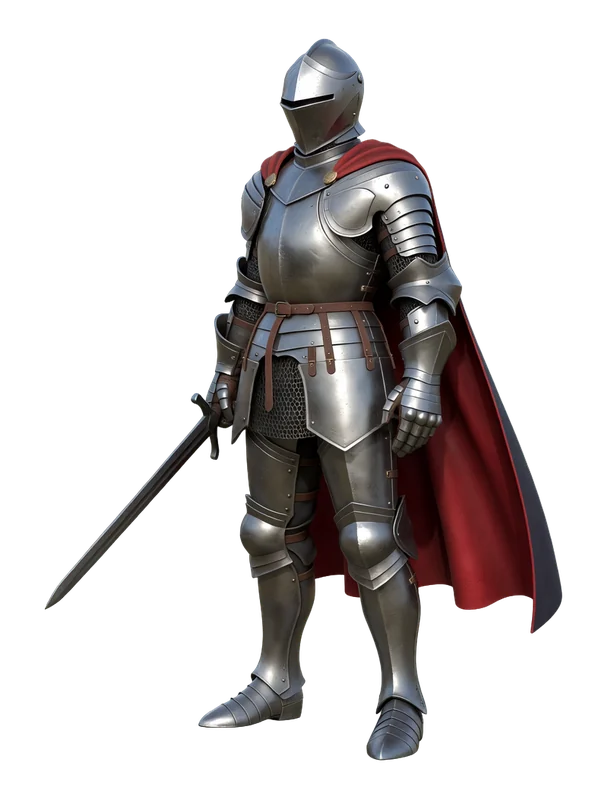
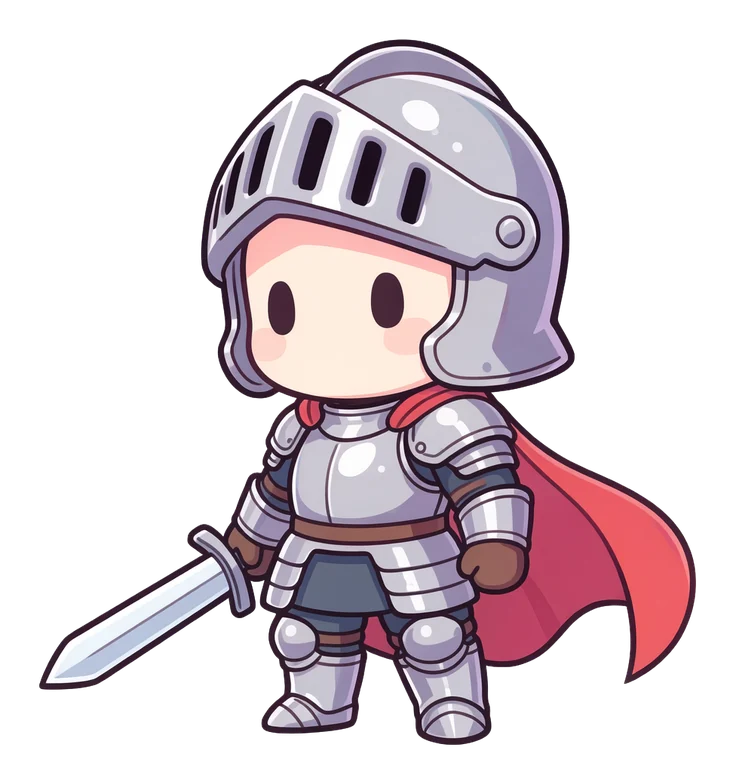
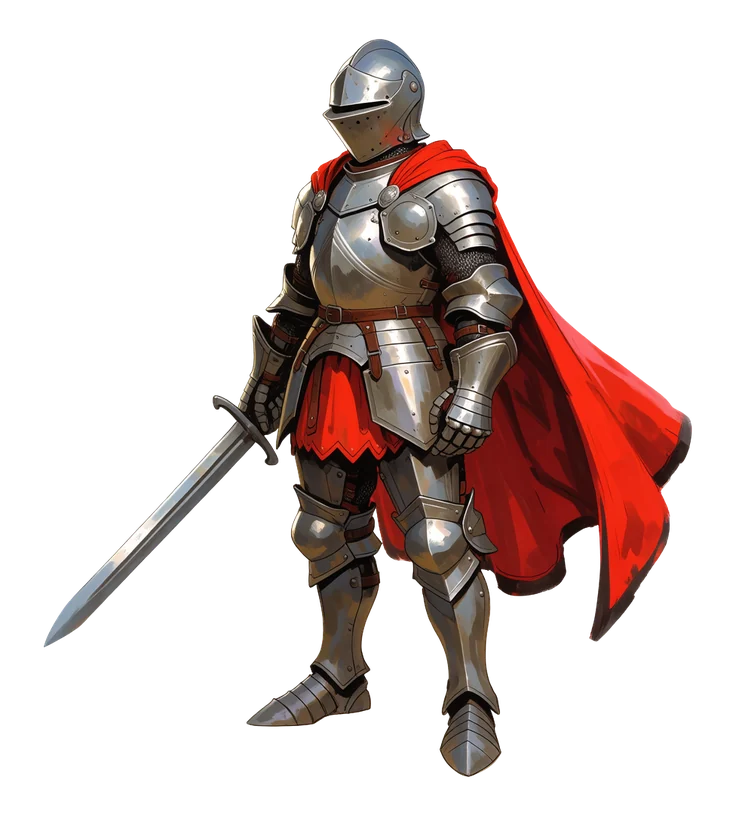
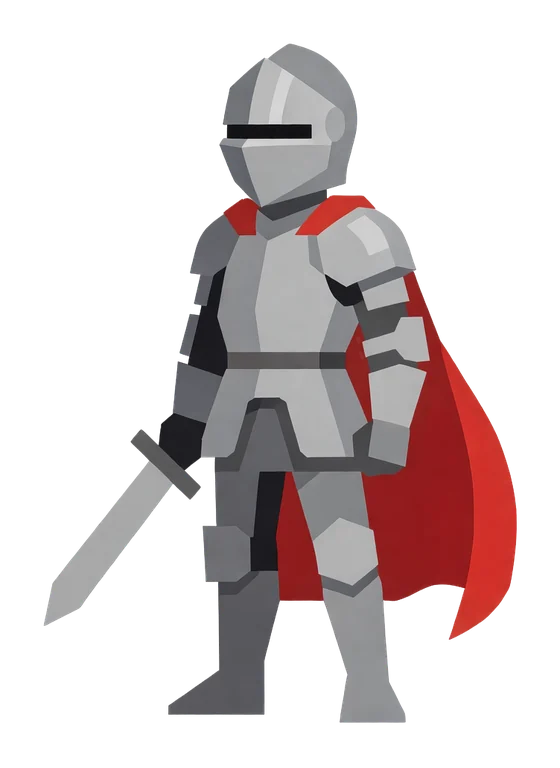
The Image Generator supports twenty-one distinct image types, selectable from the tile picker shown above the prompt. Each type is tuned to produce a specific kind of asset, from broad concept art to sprites, logos, tiling strips, and scrolling layers ready to drop into your game engine.
Picking the right type does a lot of work for you: it steers the composition and framing, sets a sensible default aspect ratio, and — for the types that need it — makes the result seamless or delivers it on a transparent background.
Concept and scene art
- Any type — Non-specified image type, useful when you don't want the model to bias toward any particular category.
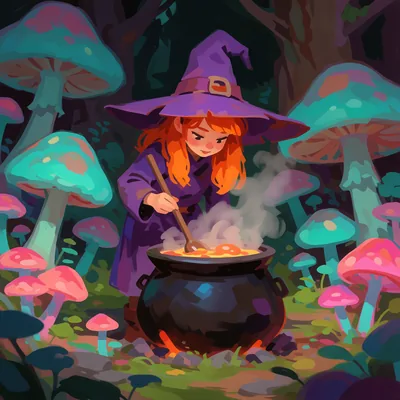
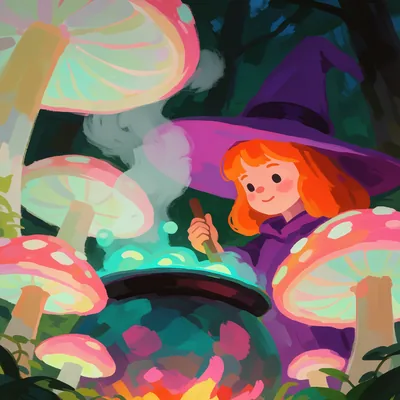
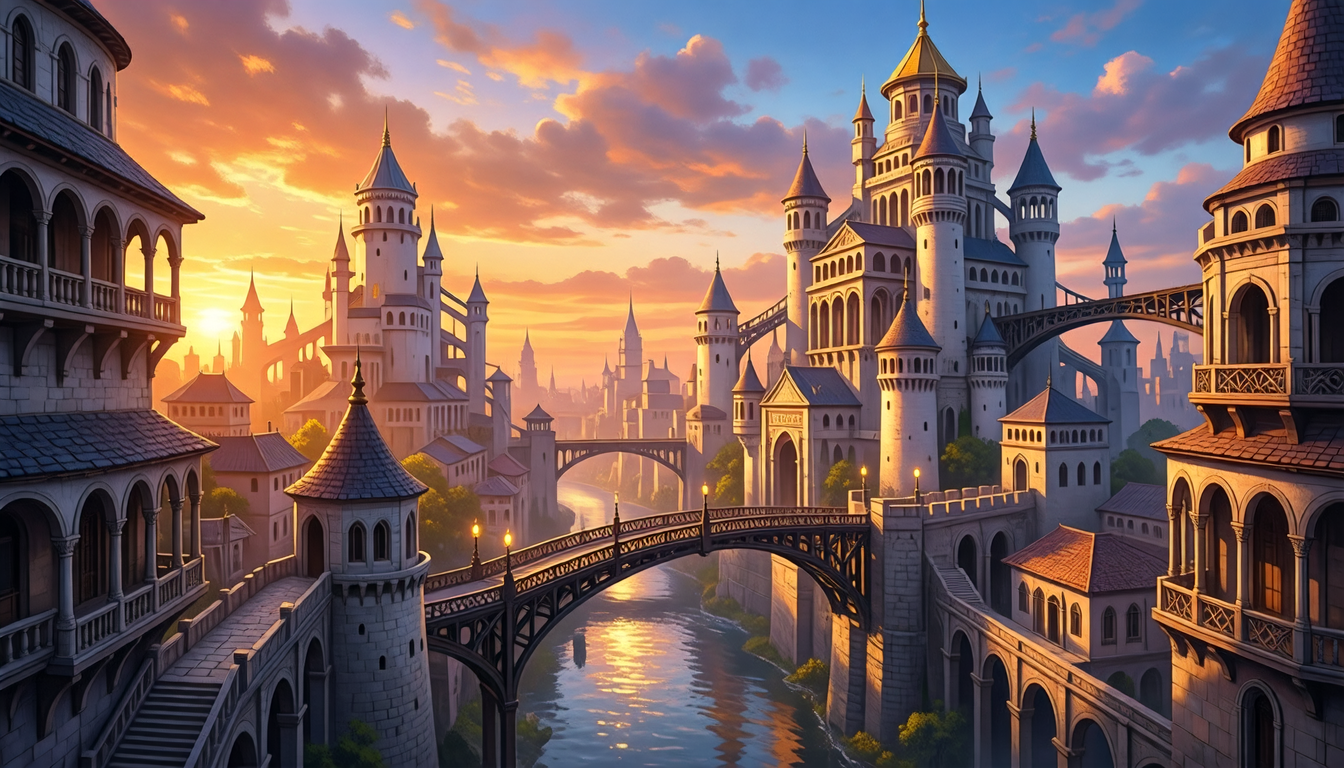
- Scene Art — Concept art of scenes or themes. Ideal for visualizing characters, environments, mood boards, and overall art direction.
- Gameplay — In-game screenshot showing gameplay. Use it to visualize how your game will look in action, mock up levels, or test camera angles and perspectives.
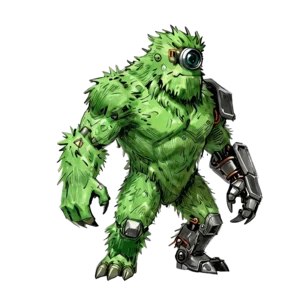
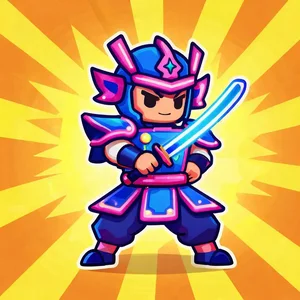
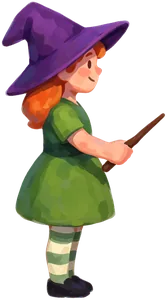
- Asset Art — Concept art of a single asset (character, item, prop). The subject is shown in full view against a background that contrasts clearly with it, so it reads as a focused asset study rather than a scene.
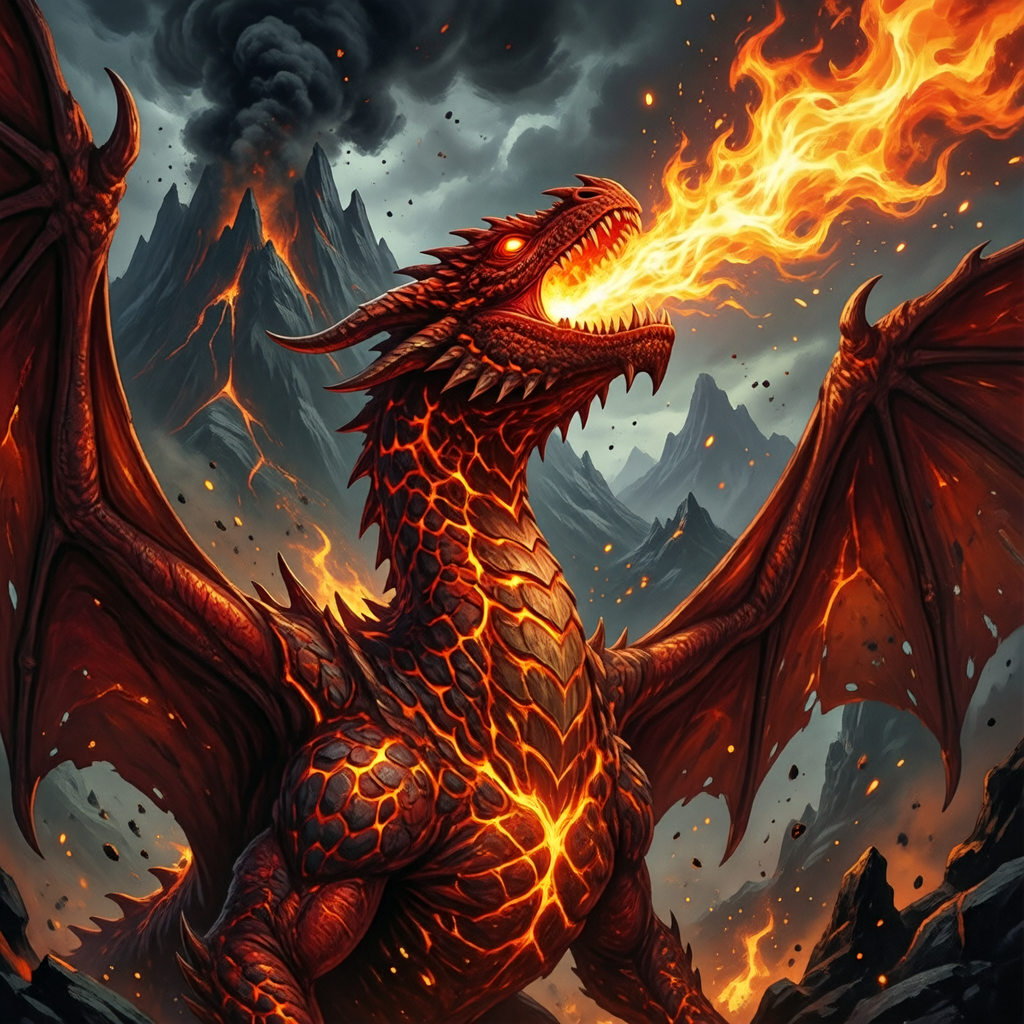
- Card Art — An artistic illustration of a single dramatic subject with a complementary background, for a collectible or trading card game.
- Splash Screen — Cinematic image for game loading or launch screens, carrying the game's key art and atmosphere.
Game-ready assets
These types are delivered on a transparent background, ready to composite directly into your game.
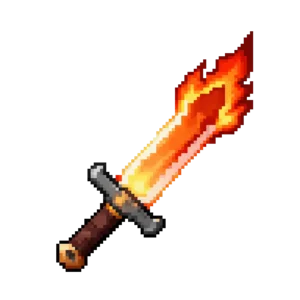
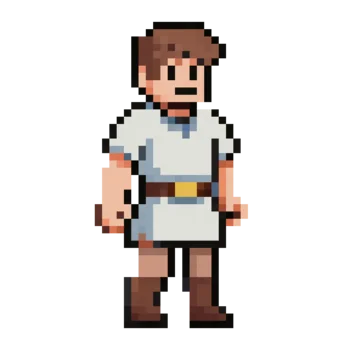
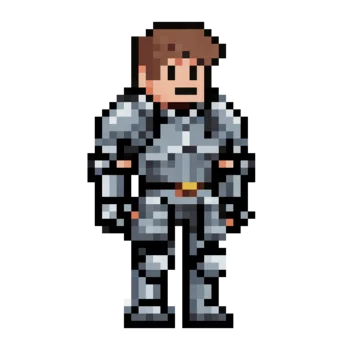
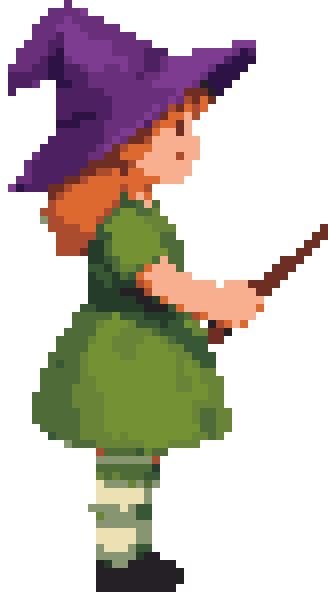
- Sprite — Character or object sprite ready to use in a game engine. Unlike Asset Art, Sprites are generated with flat lighting and shadows removed so they can be animated or composited cleanly.
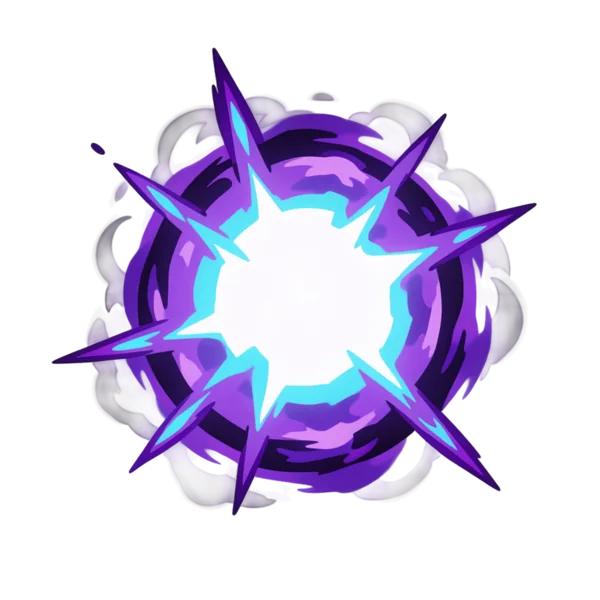
- VFX Sprite — Isolated visual-effect sprite (muzzle flash, magic impact, explosion) captured at the peak of the effect. Suitable for particle systems or procedural animations.
- UI Element — Buttons, status bars, frames, and other isolated UI elements.
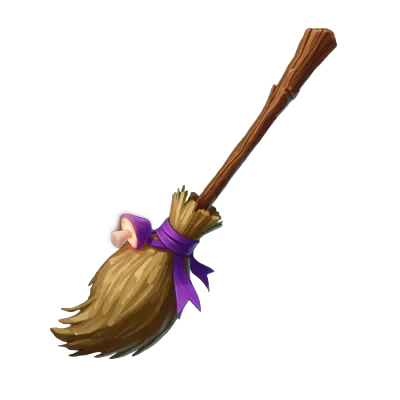
- Item Icon — Small, clear icon representing an in-game item, for inventory, shop, or loot systems.
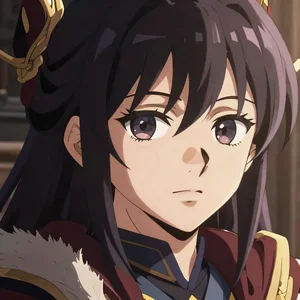
- Character Portrait — Close-up character portrait for dialogue boxes, menus, or roster screens.
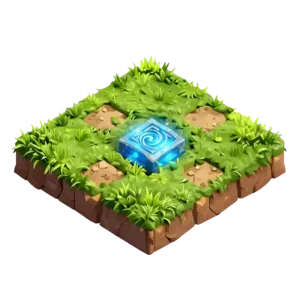
- Map Tile — Independent grid cell for use in tile-based maps. The tile adapts to the selected perspective — top-down by default, or isometric and high-angle variants with a visible side edge.
Tiling sprites
Cut-out assets that repeat along one axis, so you can build a run of them without a visible join.
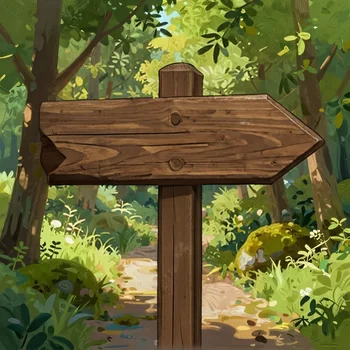
- Horizontal Tiling Sprite — A horizontally repeating sprite on a transparent background: platforms, bridges, fences, walls, energy beams. Loops seamlessly left to right, and defaults to an ultra-wide canvas so one generation covers a long run.
- Vertical Tiling Sprite — A vertically repeating sprite on a transparent background: ropes, chains, vines, ladders, beams. Loops seamlessly top to bottom, on a tall canvas.
Branding and store assets
- Game Icon — App-store icon for a game, always produced at 1:1 regardless of the aspect ratio you select. Use it for store listings and marketing materials.
- Game Logo — A game title logo with stylized lettering, delivered on a transparent background. Put the exact wording you want in your prompt — the title is used verbatim, and it is never invented for you. Leave the wording out and you get a text-free emblem or mark instead.
Backgrounds and scrolling layers
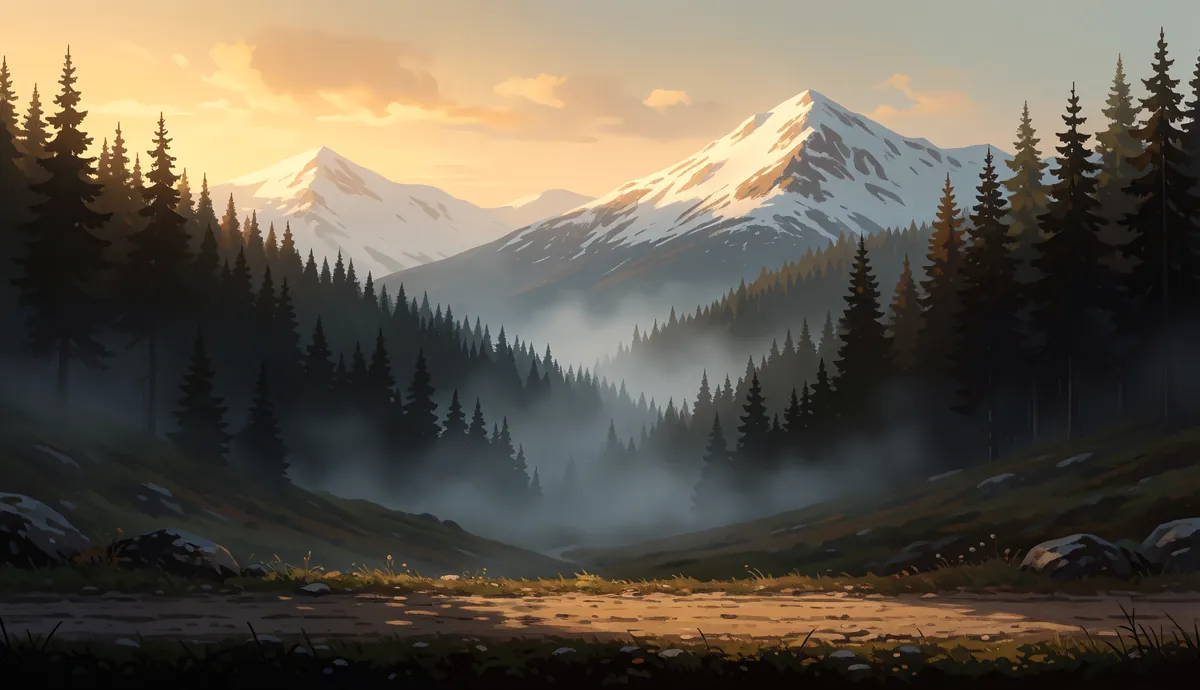
- Static Background — Static full-screen background for game levels or menus. Focuses on atmosphere, setting, and mood, with no playable characters or UI.
- Horizontal Background — Horizontally repeating background for side-scrolling games. Loops seamlessly left to right, and defaults to an ultra-wide canvas so you get a long strip of scenery per generation.
- Vertical Background — Vertically repeating background for vertical scrollers and endless climbers/divers. Loops seamlessly top to bottom, with no ground, horizon, or ceiling to break the illusion, and uniform brightness from top to bottom so the seam never shows.
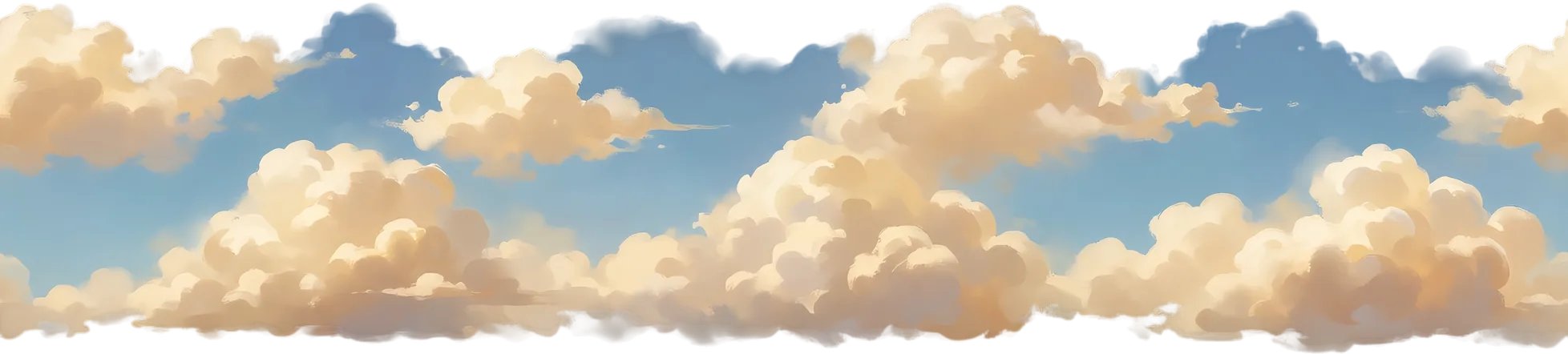
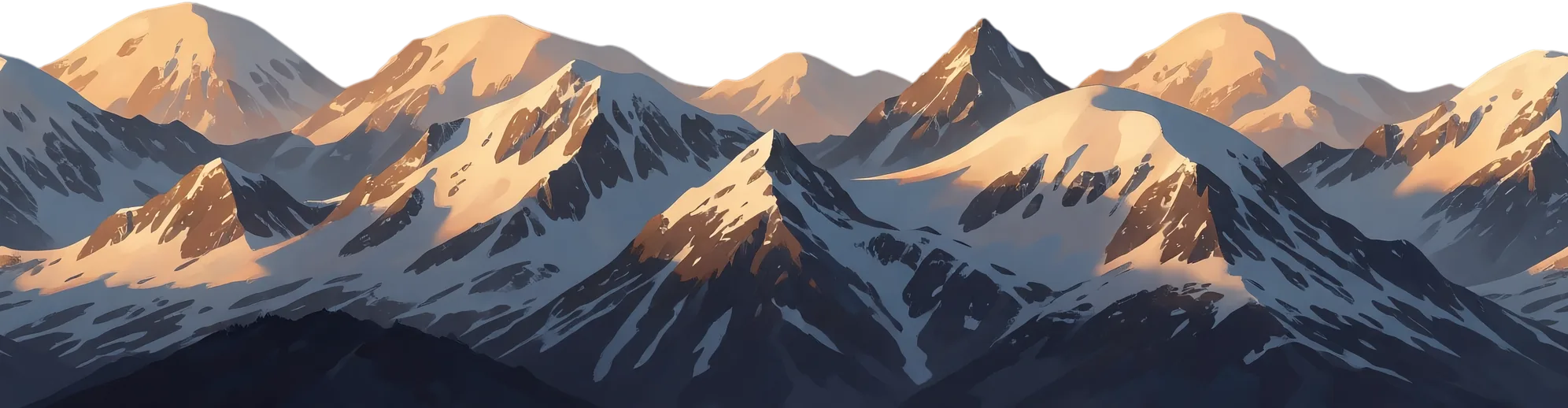
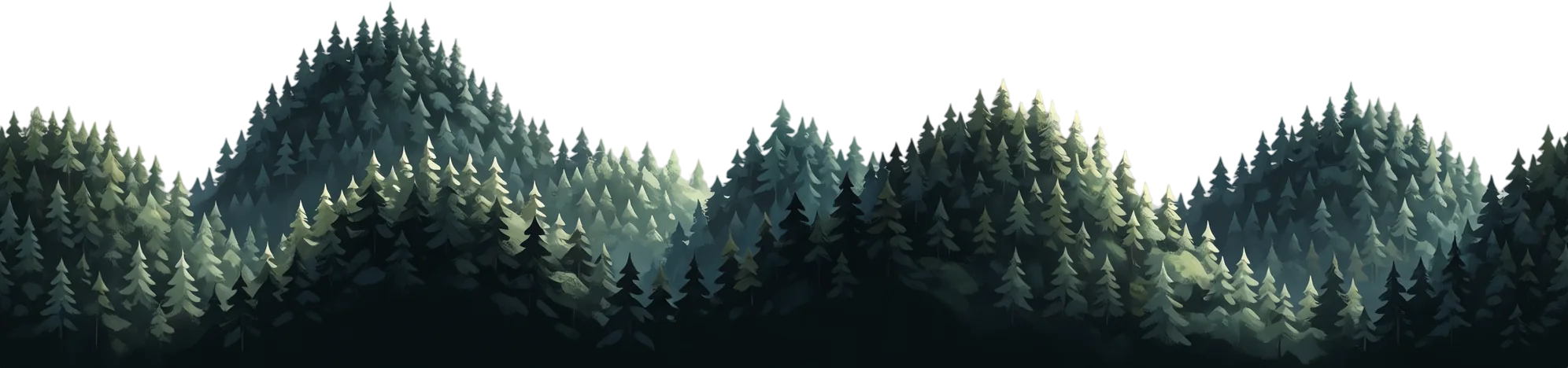
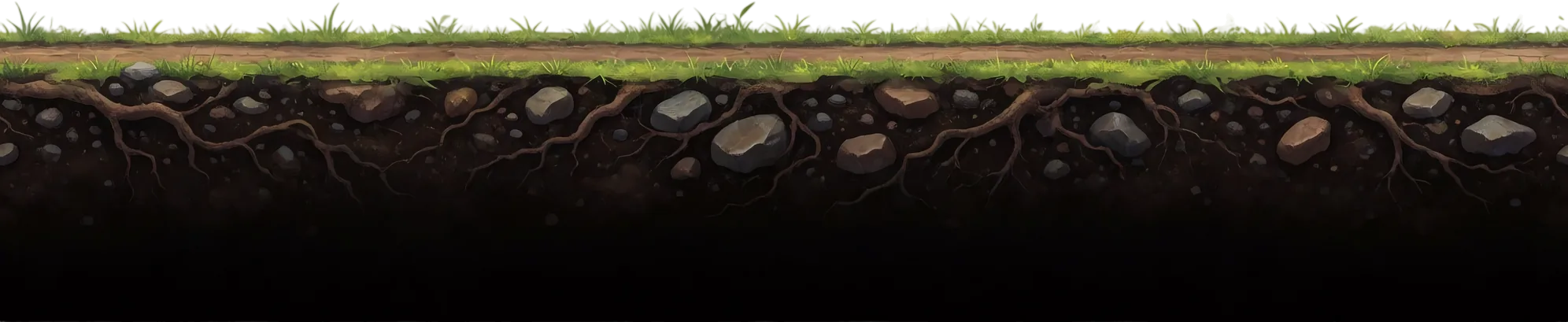
- Parallax Layer — A single horizontally repeating scene layer on a transparent background, for building parallax scenes one layer at a time. Describe one layer per generation and the layer is anchored appropriately: ground and terrain layers sit flush against the bottom edge, ceiling layers against the top, and floating layers (cloud banks, distant birds, drifting islands) sit in the middle touching neither.
Tiling surfaces
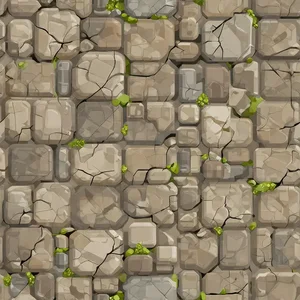
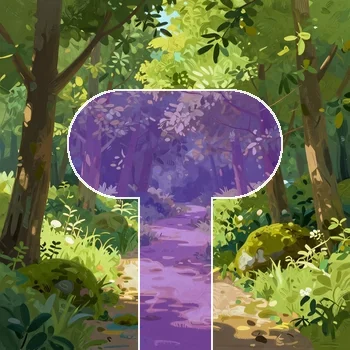
- Texture — Seamless tileable surface for meshes or terrain. Repeats perfectly in both directions across a 3D surface without visible seams.
Checking a tiling result
For any type that repeats — the tiling sprites, Horizontal and Vertical Background, Parallax Layer, and Texture — open the image fullscreen and use the two extra preview modes next to the single-copy view: one scrolls the image endlessly through itself, the other lays copies side by side. Both run along the axis the type repeats on, so you can see the seam (or the absence of one) before you commit the asset.
Which types can be animated
Most of these types can be turned into an animation in the Sprite Generator: Sprite, VFX Sprite, UI Element, Item Icon, Character Portrait, Game Logo, Map Tile, both Tiling Sprites, Parallax Layer, Texture, and Card Art. On a Sprite result, the card's Generate Spritesheet action takes you straight there; for the other types, open the Sprite Generator's Animate mode and pick the image from your history. Scene art, gameplay shots, backgrounds, splash screens and game icons are not animatable as sprites.